Switching from Windows
Enter opens, Backspace goes up, Delete removes, and the side mouse buttons handle Back/Forward. The address bar is exactly where you expect it — no need to retrain your muscle memory.
Your shortcuts. Your apps. Your explorer.
F2, Enter and Delete work just like on Windows, and you get the terminal, Git and RegExp filters in a single window. Native, fast and private, with no telemetry.
30-day free trial. No card, no account.
Mac Explorer doesn't try to reinvent files. It lets you handle them quickly, predictably and your own way — no matter where you're coming from.
Enter opens, Backspace goes up, Delete removes, and the side mouse buttons handle Back/Forward. The address bar is exactly where you expect it — no need to retrain your muscle memory.
The terminal starts in the current folder, the Git section shows the branch and changes, the filter supports RegExp, and the list shows MIME, chmod and owner. Add your own scripts without rebuilding the app.
No trying to be an IDE, an FTP client and an admin panel all at once. One clear view, two presentation modes and the set of operations you actually use every day.
A bug Apple truly loves #015
You stretch the window to fill the screen. You close it. You open a new one — and it's small again, in a random spot. You stretch it once more. You close it. You open it. Wrong again. Finder saves the window state somewhere, but apparently on a sticky note that keeps getting blown away by the wind.
We happen to remember little things like that. Mac Explorer opens exactly where and at the size you left it — because respecting your window layout isn't a premium feature, it's the bare minimum.
No HTML, JS or CSS underneath — just native Swift and system frameworks. That's why it launches in a fraction of a second and doesn't eat memory when you have dozens of windows open.
// benchmark: Apple M4 Max · macOS 26.5.2 · 36 GB RAM · local build
Start screen
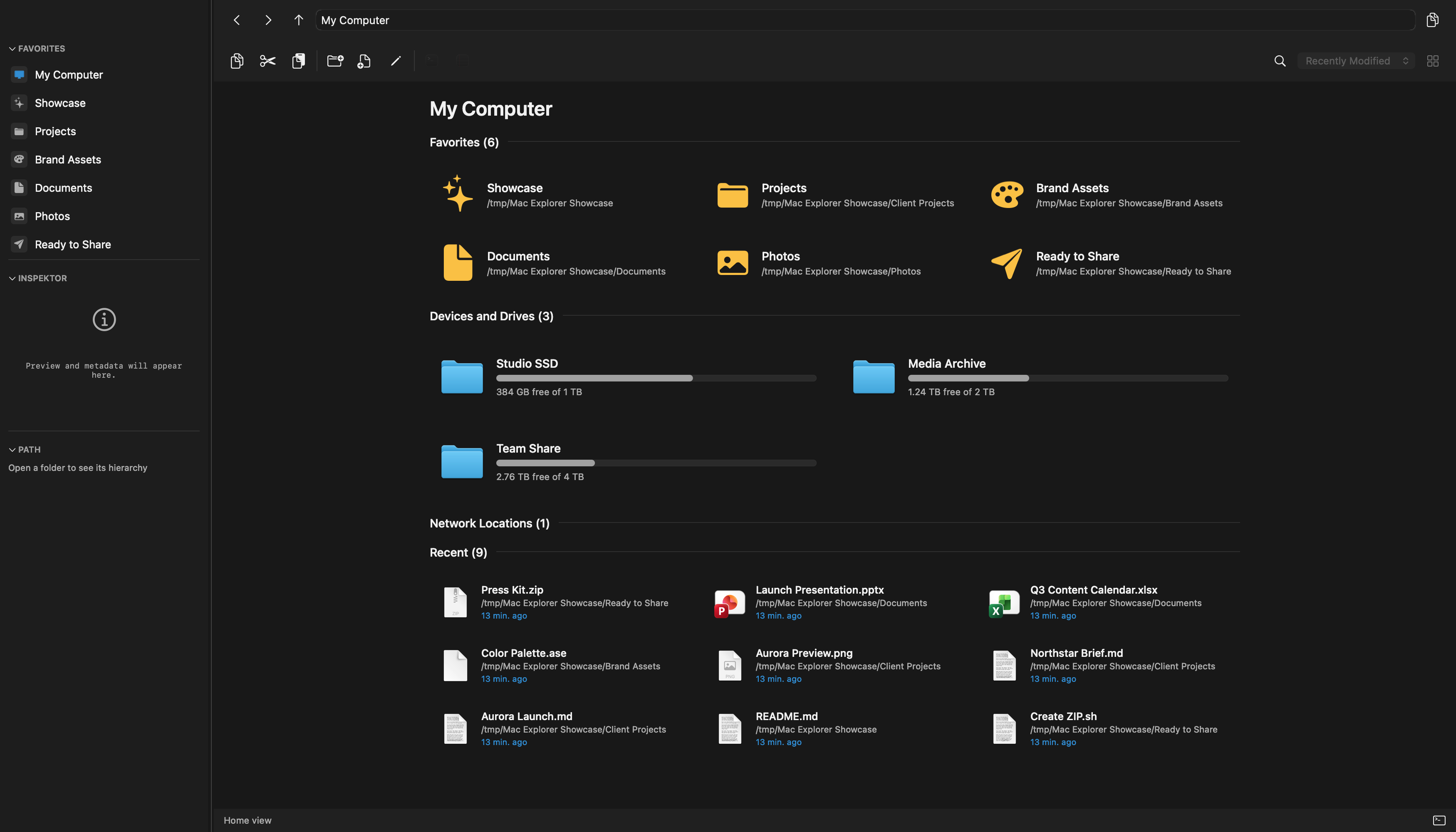
Favorites, all your drives, their usage and recent files — without digging through hidden sections. A disconnected drive in Favorites doesn't disappear: it stays dimmed and unlocks itself once remounted.
Not just another folder viewer. The tools a developer uses every day — available without reaching for the mouse.
Type .*View.* and see only what you're looking for. Real-time filtering, even in directories with thousands of files.
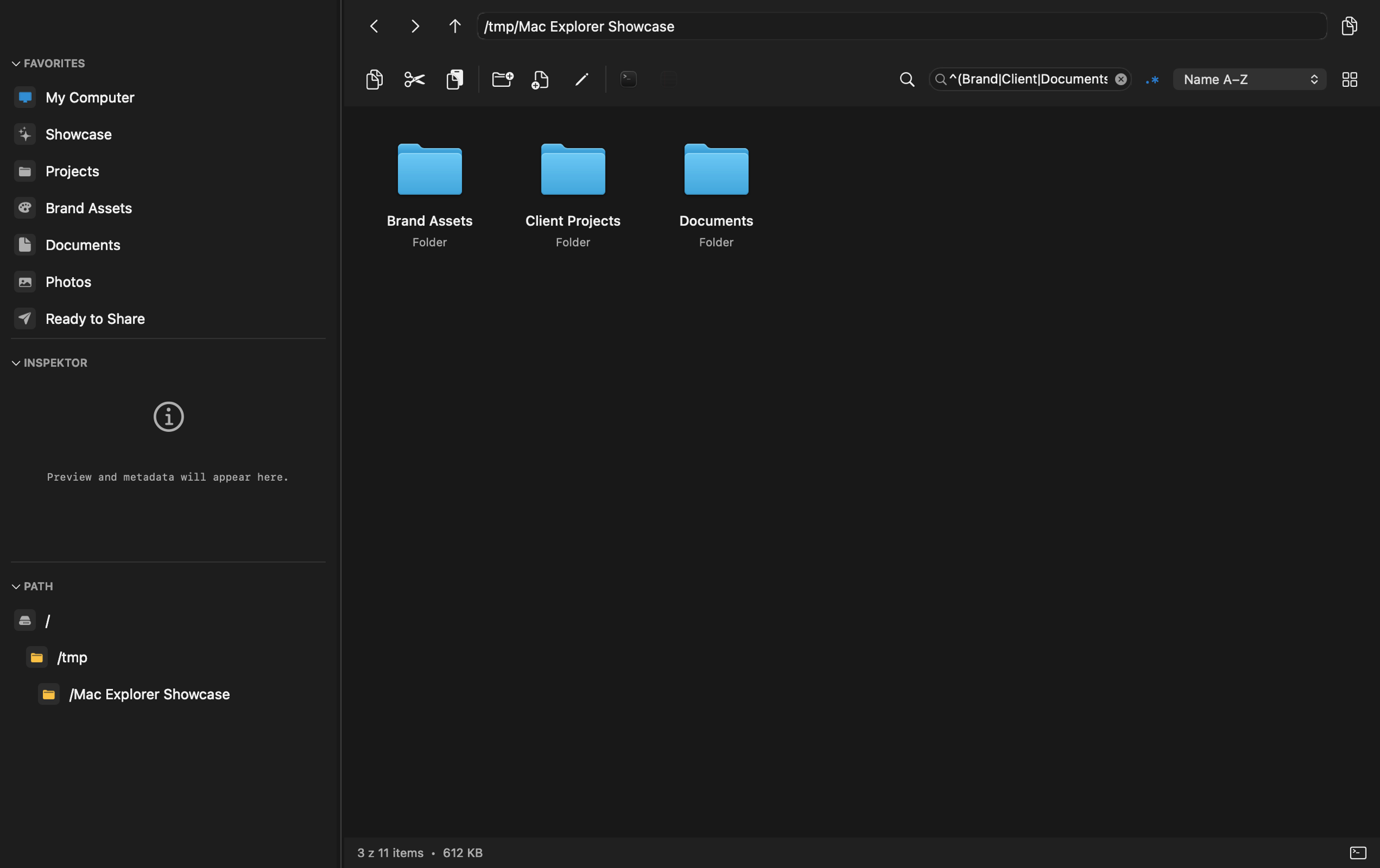
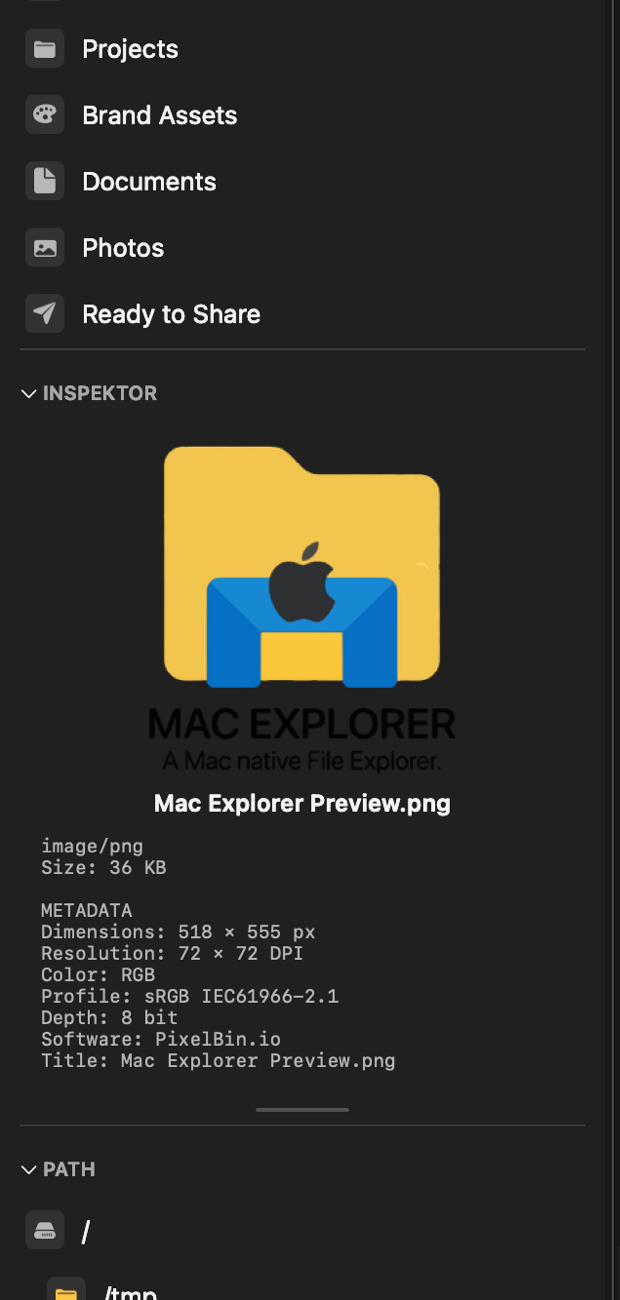
Preview, dimensions, color profile and full metadata — always in the side panel.
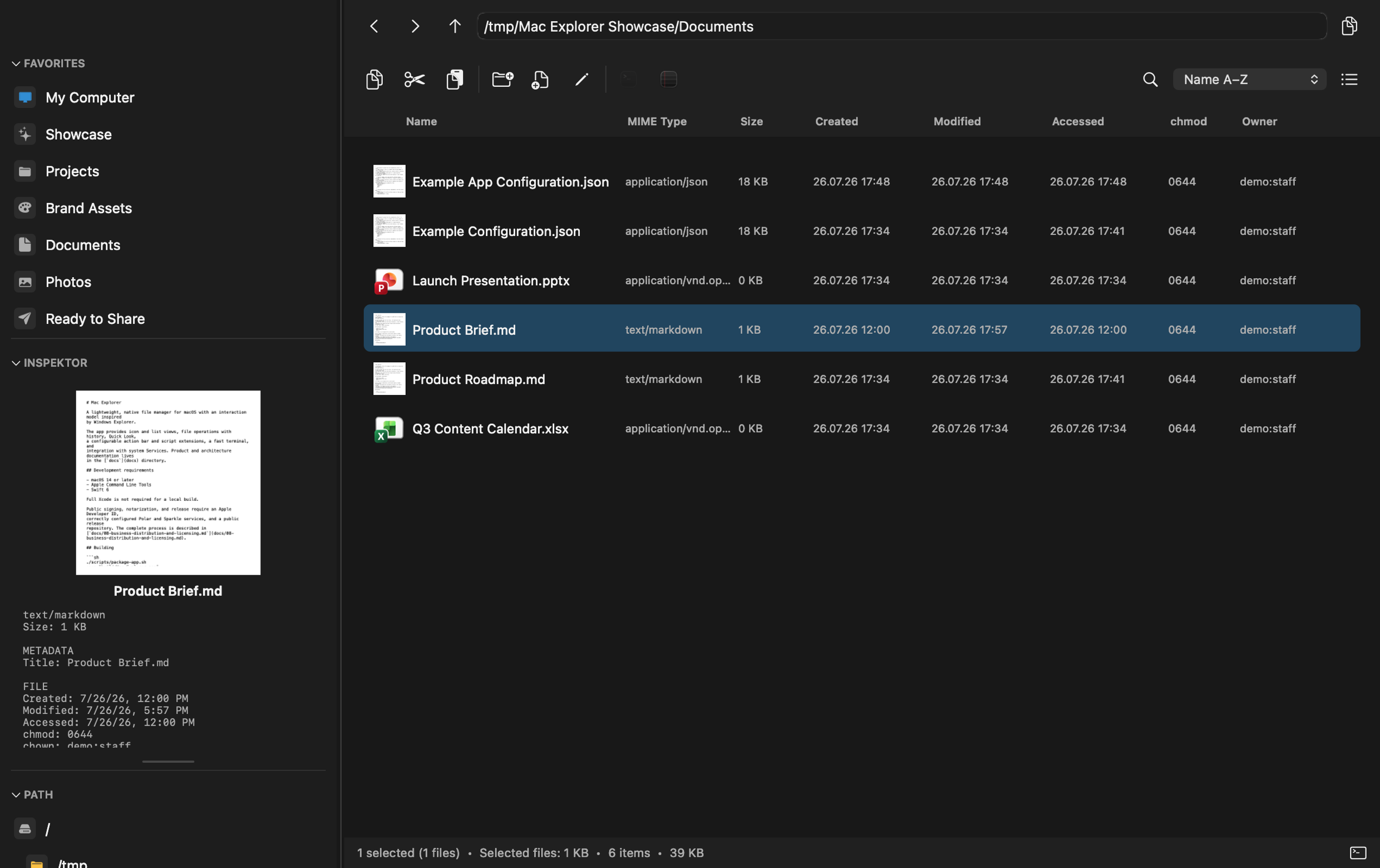
Icons or a detailed list with MIME, chmod, owner and dates.
Copy, move, rename and delete with full history. ⌘Zworks exactly the way you'd expect.
Favorites, devices and free space on a single “My Computer” start screen.
Start typing to jump to a file. Filter as you type. And when you need precision — turn on full regular expressions. All without indexing the disk and without leaving the directory.
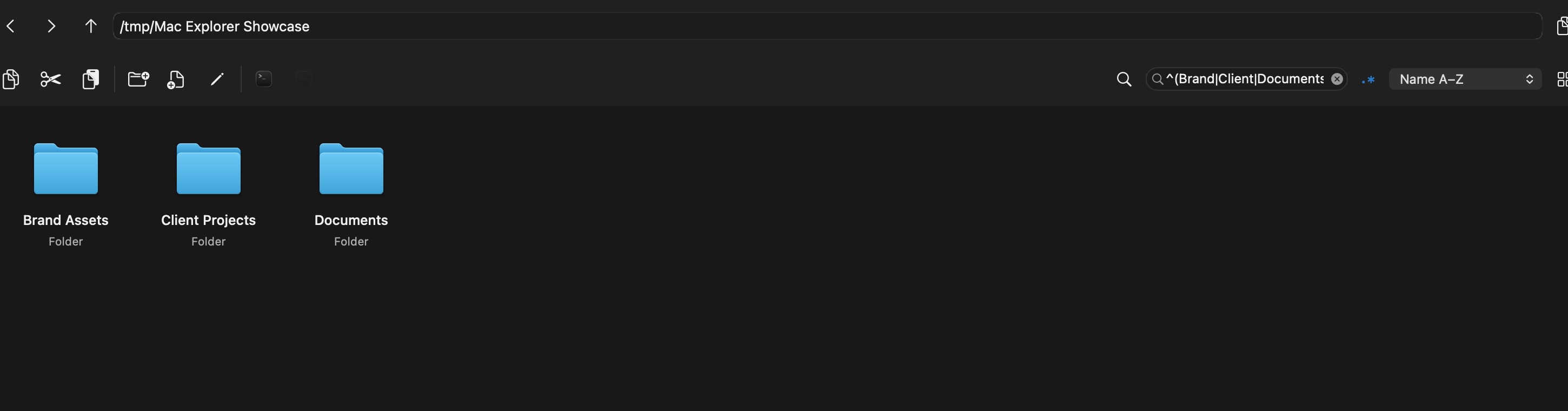
Type global to select the first matching item. Repeat the phrase to jump to the next hit.
⌘F is a plain name filter, ⇧⌘F switches to regular-expression mode. Results update as you type.
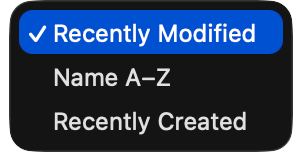
Last modified, name A–Z or creation date — without a multi-level settings panel.
Know exactly what you're dealing with without launching a single app. Hit Space for a full preview or glance at the inspector — so you spot the right file in seconds and keep moving, even in folders packed with thousands of items.
Space opens the full system preview of the selected file — it works for multiple files at once too.
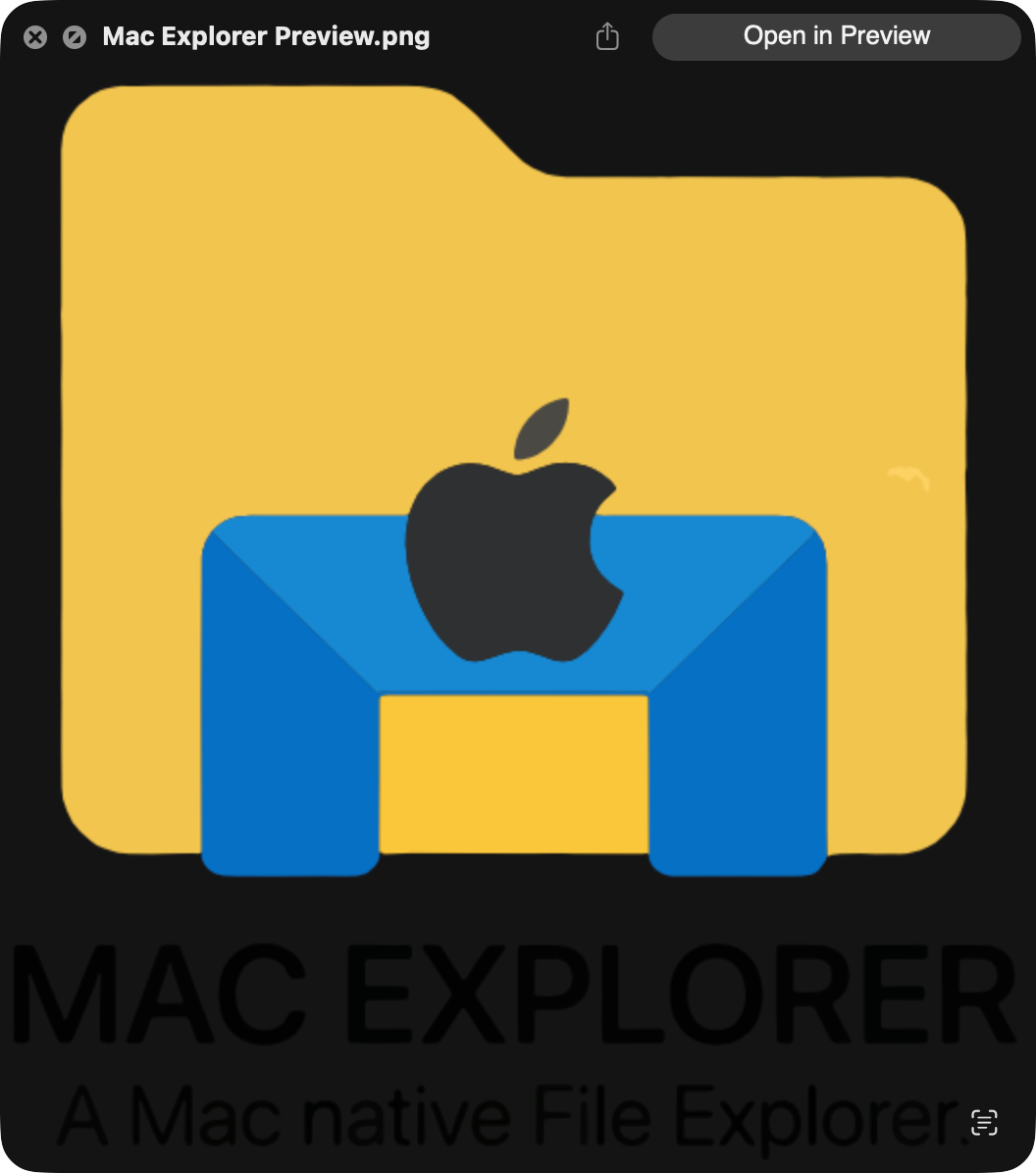
One glance gives you a big preview and every detail that matters for the selected file — right there in the sidebar, always a step ahead of you.
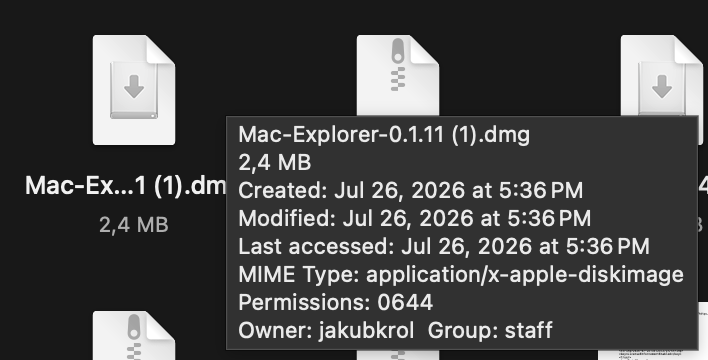
Just like on Windows. The status bar sums up your selection — files, folders, total size and free space — and a quick hover reveals a file's size and details. Perfect for tracking down whatever is eating your disk.

Creating, renaming, permissions and file info — in small, fast dialogs that don't cover the whole window.
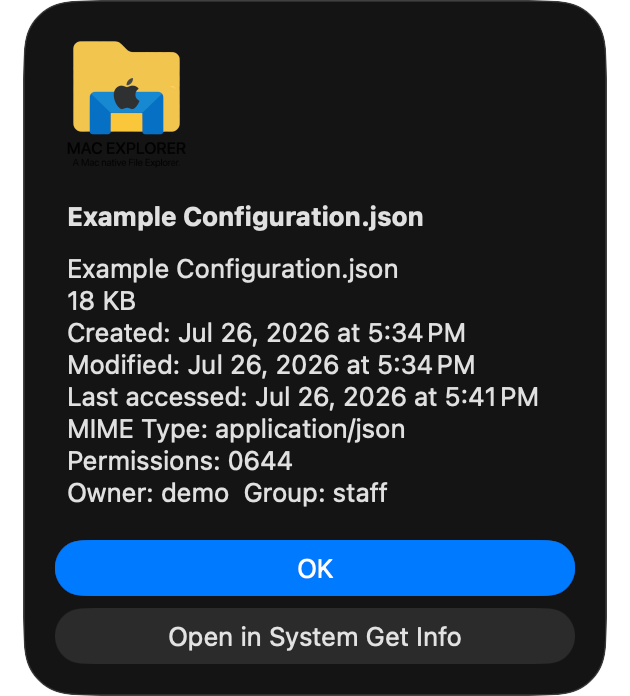
A quick look at size, dates, MIME, chmod and owner — or the system dialog.
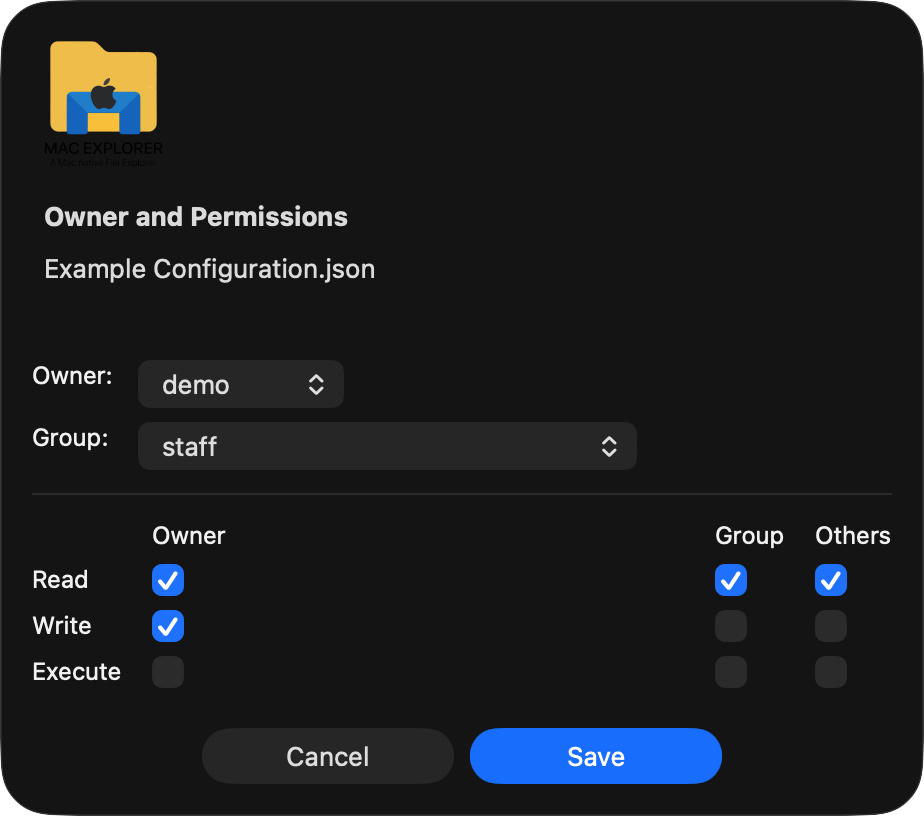
Edit owner, group and chmod in an owner / group / others grid.
Enter any path, nested too — existing or new — and the missing folders create themselves. The file can have any extension, or none at all.
Create an entire, arbitrarily nested directory structure with a single confirmation — no clicking folder by folder.
F2 selects just the name stem without the extension by default, so you don't change it by accident. A simple ⌘A selects everything and lets you change the extension too — exactly like on Windows.
⌘C / ⌘X / ⌘V with the system clipboard, drag & drop across apps too. Shift forces a move instead of a copy.
⌘Z undoes, ⇧⌘Z or ⌘Y redoes. History covers creating, copying, moving, pasting, cutting and deleting.
Delete and ⌘Backspace move to the system Trash. A destructive undo or redo always shows a warning.
Add your own actions, apps and scripts straight into the right-click menu — exactly where you need them. You can't do that in Finder: everything ends up in the hidden Services menu. Here you arrange the menu around your workflow, and system Services, Quick Actions and Automator still work with no configuration.
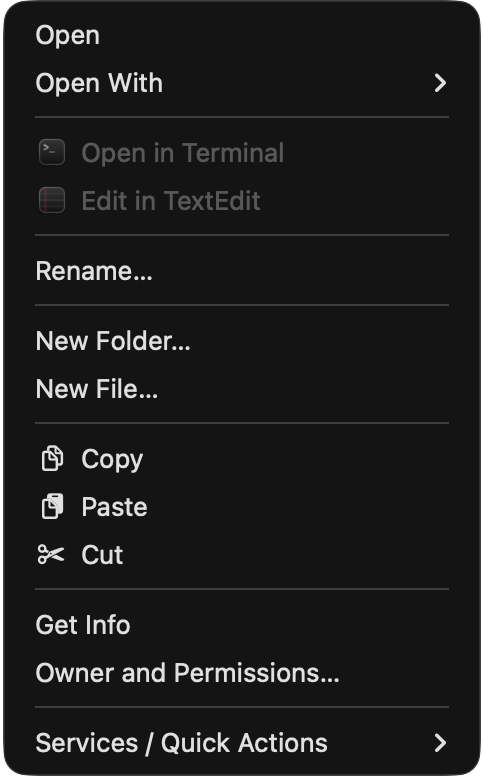
The full set of operations on a file, folder, multiple items or empty space. Unavailable actions are dimmed, not hidden — the interface doesn't “jump.”
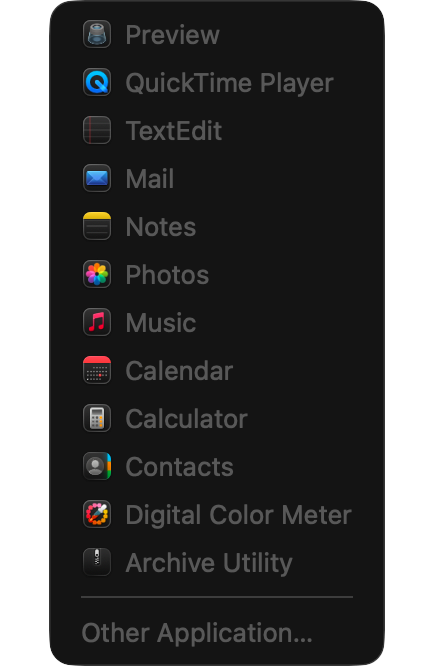
The apps macOS reports as compatible with the file type — with real icons. “Other app…” opens the system app picker.
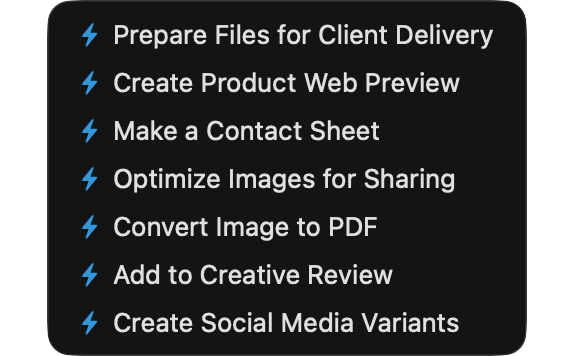
Automator workflows and compatible Quick Actions filtered for the current file — like PeaZip or “Open in Mac Explorer.”
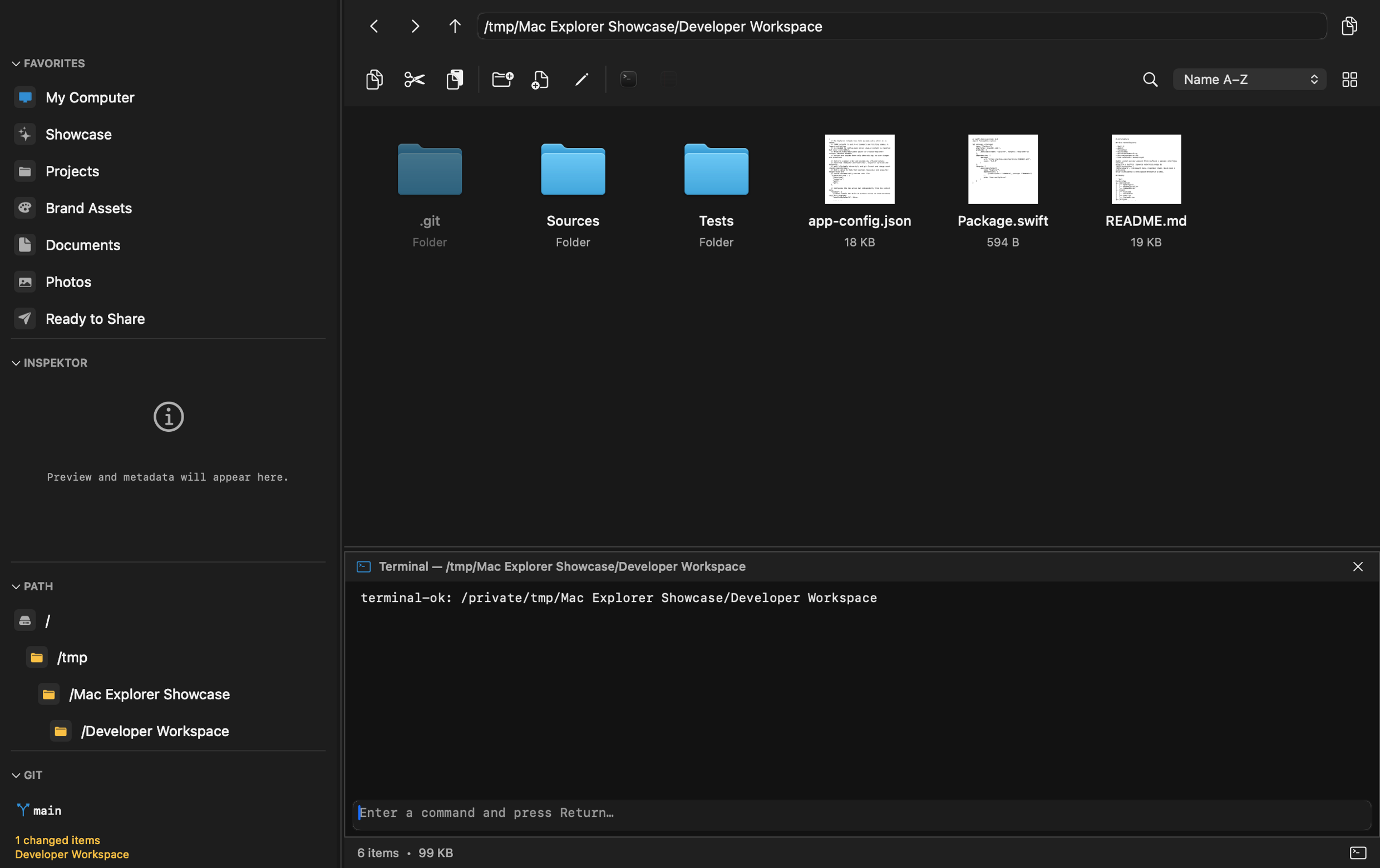
No more jumping between windows. Open a terminal in the current directory with one shortcut and check your repository status without leaving the explorer.
Built-in terminal
It opens right in the folder you're looking at — ⌥F12 shows and hides the panel.
Git awareness
The current branch and the number of changed files right in the side panel.
Switch branches in two clicks
Click the branch name, pick another from the list and you're on it — no typing git checkout.
Extensions without limits
Attach any actions to files and folders — grouped into tidy menus with sub-items. Launch the apps you open with, your own scripts and ready-made toolsets from the context menu or a shortcut, and switch off anything you don't use. Plenty of ready-made menus come in the box:
Run npm scripts with your favorite package manager, or any script in the folder using the shell you choose.
Initialize a repository, pull (fast-forward or rebase), push and generate a .gitignore file.
Format a JSON file or create a minified version of it with a single click.
Batch rename, flatten directories, remove empty folders and auto-sort by extension or date.
Create and extract ZIP and TAR.GZ archives without leaving the explorer.
Convert formats and resize images — all in a single menu.
Send files as context to ChatGPT, Codex, Claude and Perplexity.
Compute SHA-256 and other digests, or create checksum files.
Lock, unlock or force-quit the apps using the selected files. That way you'll never run into a file-access problem again.
Copy the path, file name or File URL, or open the file in Finder.
Quick custom actions connect Mac Explorer with the tools you already use.
VS Code · WebStorm · Warp · CotEditor · Notepad++ · iTerm2 · and any other you add yourself
Connect anything
Map object storage, a remote server or your team's cloud and browse it like a local folder — the same navigation, the same shortcuts. No web dashboards, no extra sync app humming in the background.
Some sources need a free add-on, installed in a single click. Skip the ones you never use and Mac Explorer stays lean — less disk, less RAM, less CPU.
A quick honest note: no cloud drive can match a local disk's millisecond response times — cloud providers impose their own rate limits, and even the best internet connection isn't as fast or stable as a cable straight to your SSD. We push every trick we can — smart caching, parallel requests, provider- specific tuning — to give you real-time access with zero upfront sync and nothing hoarded on your disk, and we auto-configure the optimal setup for every provider we support. But we'd rather tell you that upfront than let a spinner do it later. On some providers, a handful of tools are also not yet available.
Total control
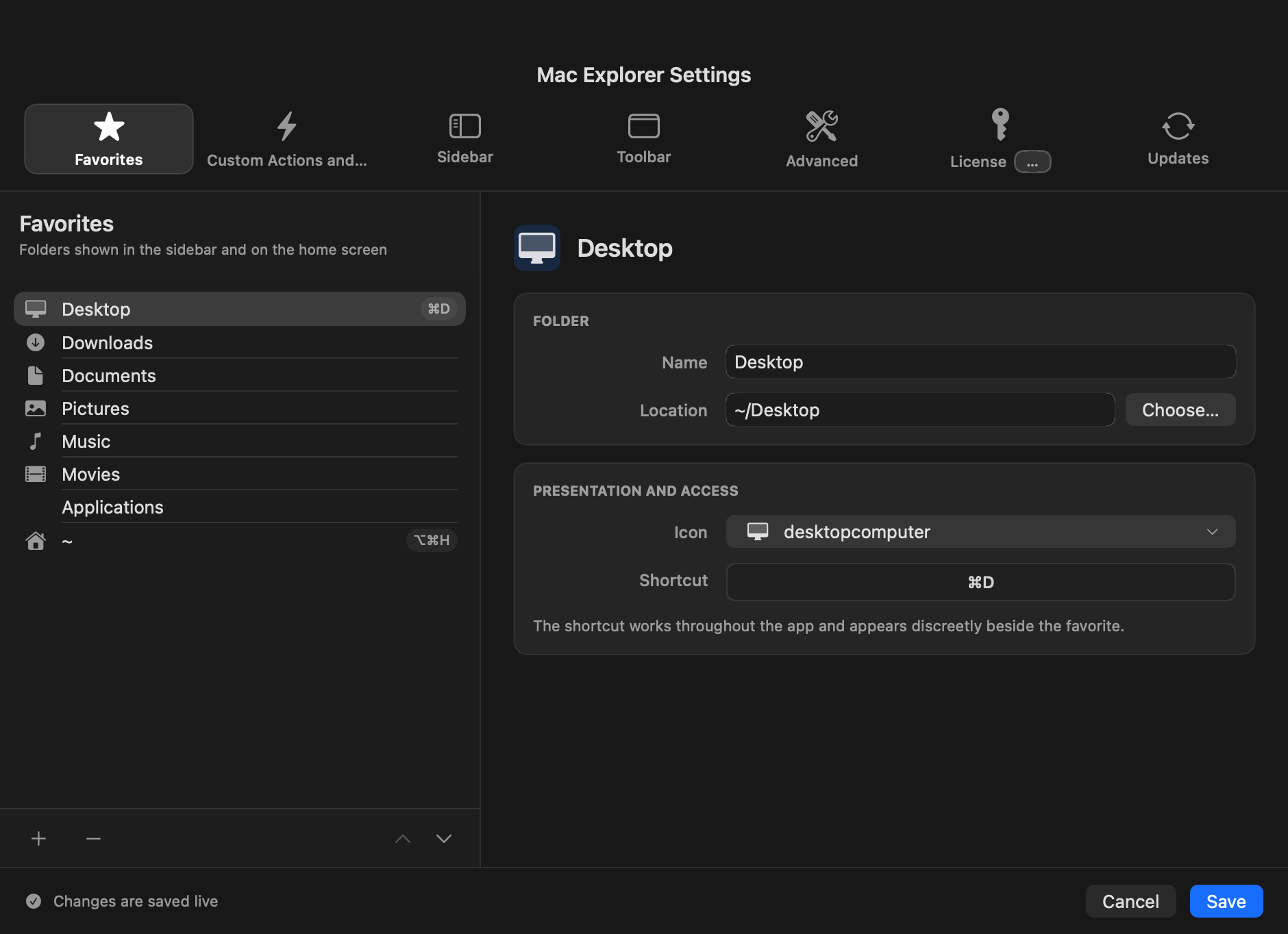
The sidebar, the order and icons of toolbar buttons, custom actions — all in one convenient JSONC file (JSON with comments), documented right in the comments. Changes load automatically, with no restart, and a broken file doesn't destroy your last valid configuration.
And if you'd rather click — you can now change those same settings in a convenient menu, with changes saved live.
Pin the folders, drives and shortcuts you actually open. Set your favorites once.
Icons, a list, or details with MIME, chmod and owner. Choose what stays visible.
Save the file and changes load instantly — no app restart. Tweak it and see the effect right away.
Set any apps you use to open files and folders. You decide what launches from where.
⌘, opens the configuration anytime
Ready in minutes
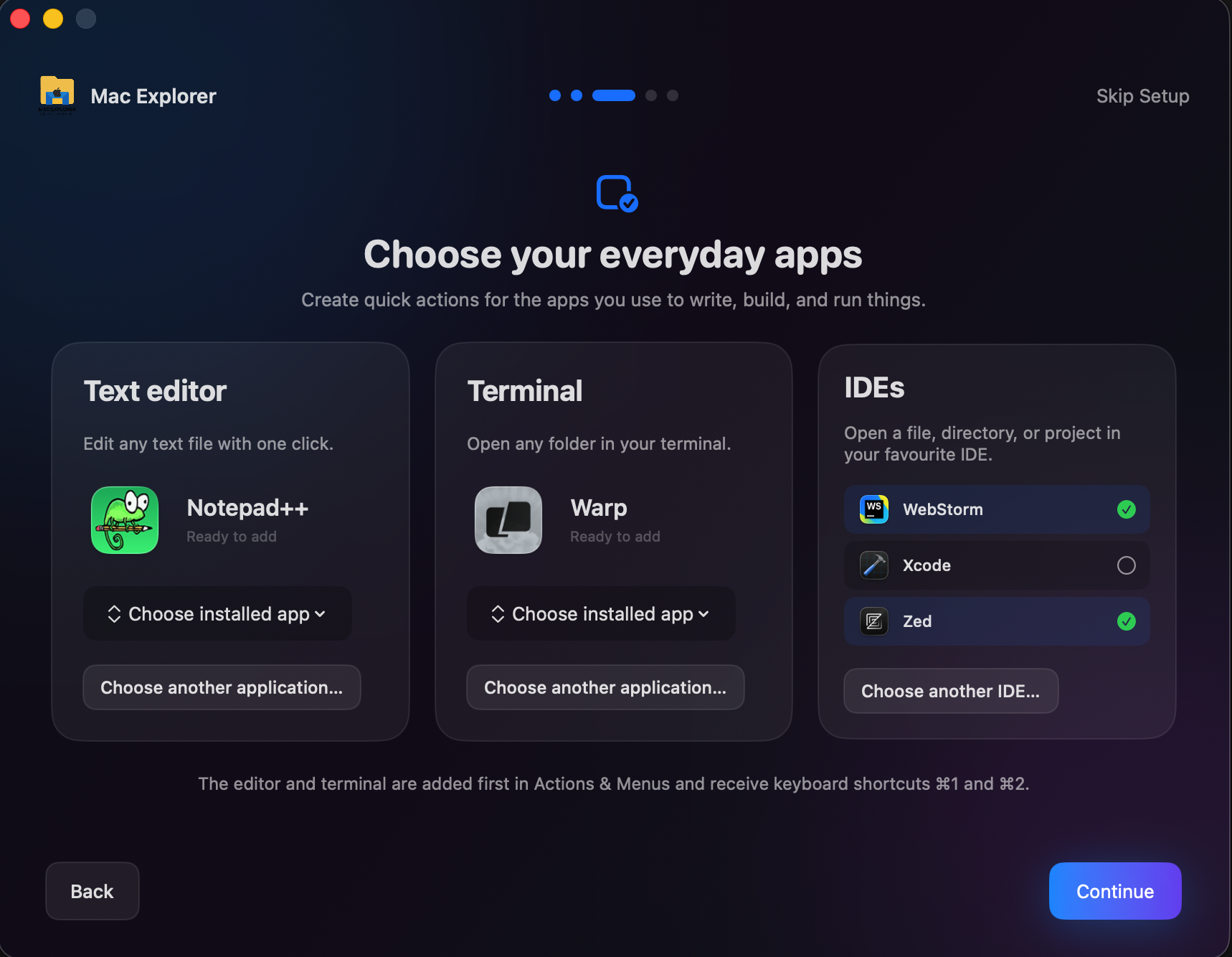
A short guided setup gets you going in just a few minutes. Pick your editor, terminal and IDEs, and Mac Explorer wires up quick actions for the tools you already use — so from the very first launch it feels like yours, not like something you have to learn.
For those who switched from Windows
F2 renames, Enter opens. Instead of relearning macOS from scratch, you just work.
Full support for keyboard, mouse and trackpad gestures — work comfortably, no matter what your setup is.
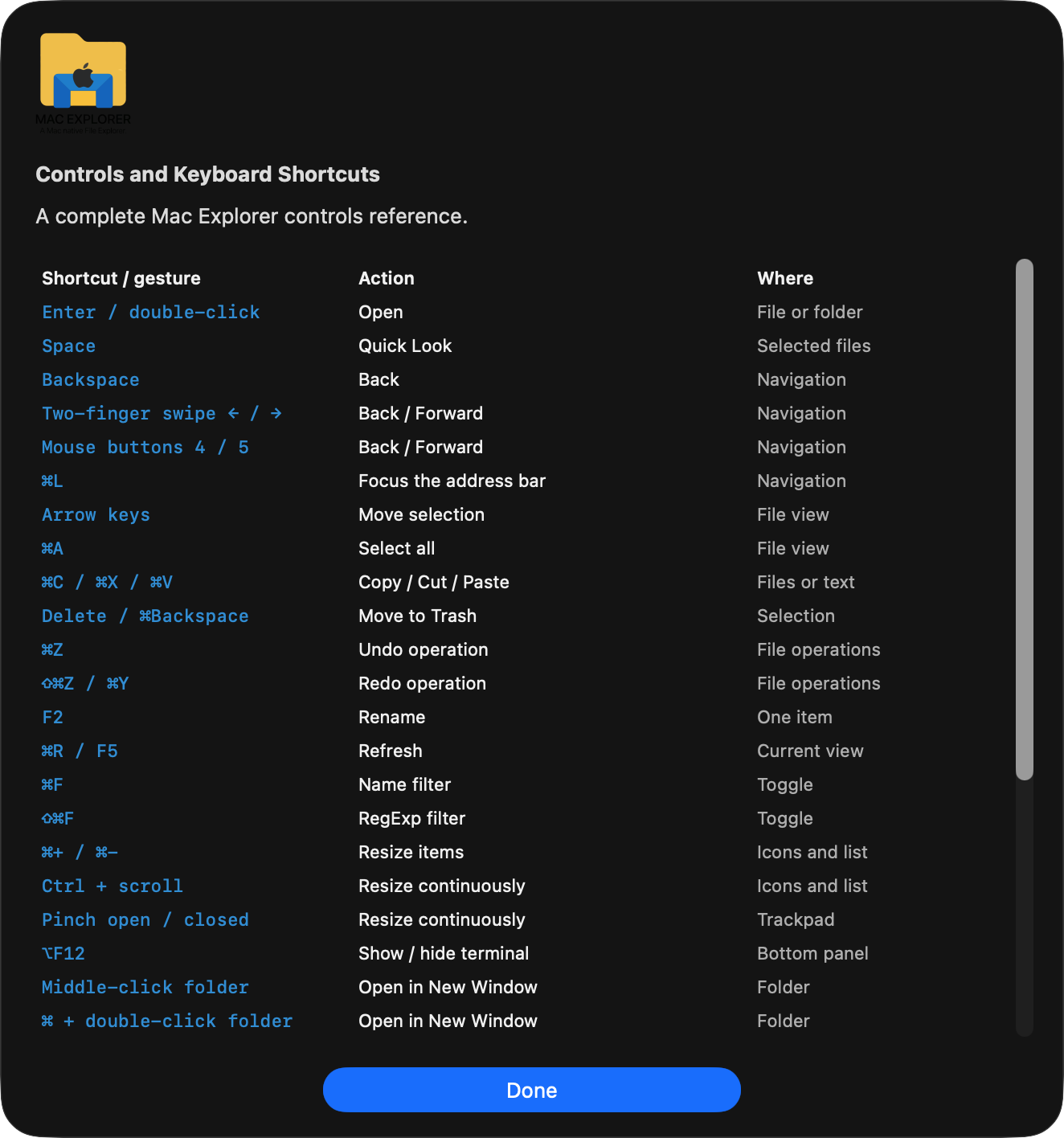
System integration
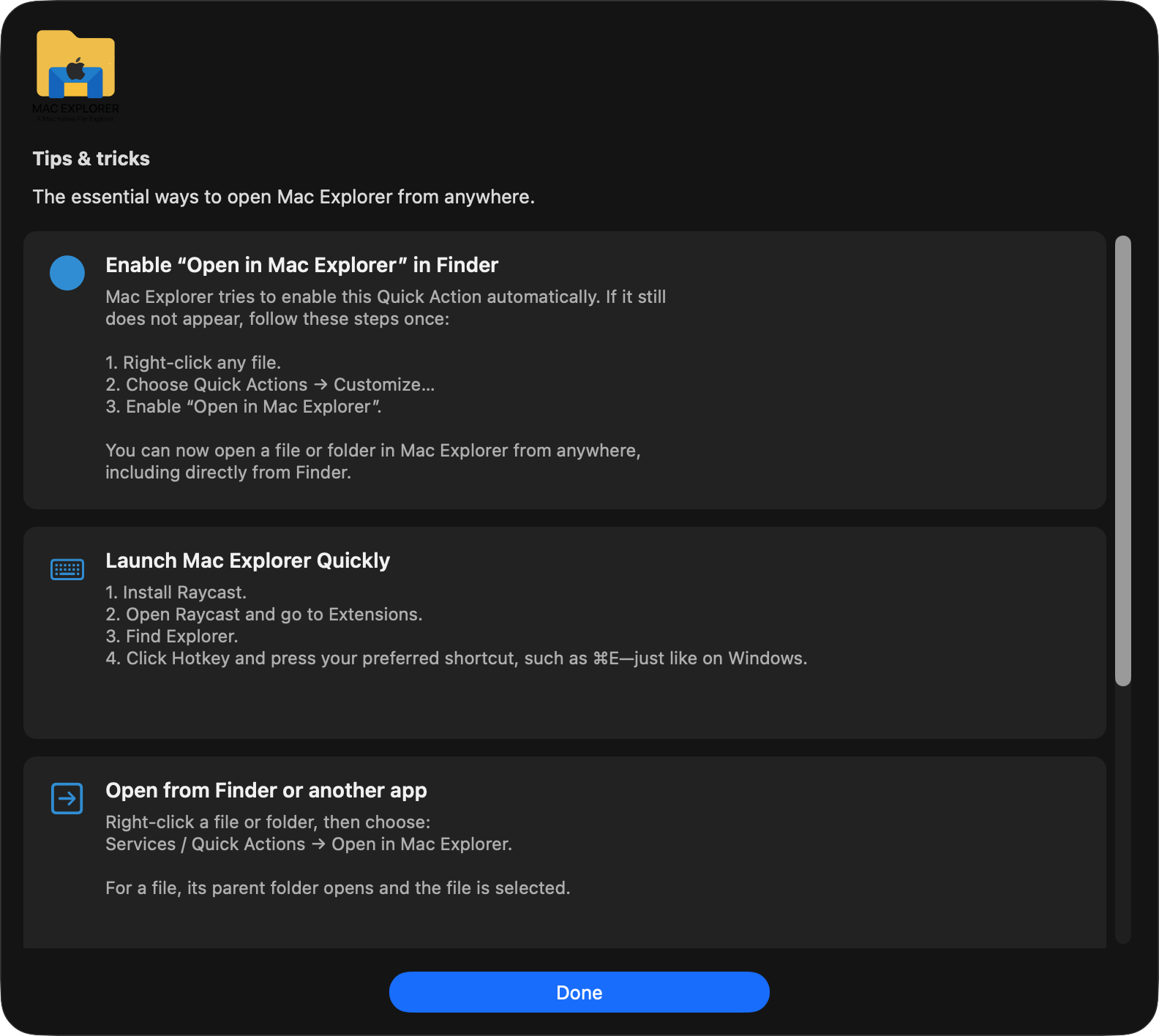
Mac Explorer fits neatly into your system and the apps you already use — from Finder to a global shortcut like Win+E.
“Open in Mac Explorer” in Finder
The installed Quick Action opens a file or folder from anywhere. For a file, it opens the parent directory and selects the item.
A global shortcut via Raycast
Assign e.g. ⌘E as a hotkey to summon Mac Explorer exactly like Win+E on Windows.
The app is cut off from the internet. No data — not even anonymous or telemetry data — reaches our servers. The only network connections are checking for updates and verifying a license. Nothing more.
We send absolutely no data to our servers — not even anonymous data, not even usage stats. No analytics module, no background measurement.
The app makes a network connection in only two situations: checking for update availability and verifying a license or trial period. Nothing beyond that.
Custom scripts receive their arguments as a plain array, never as an interpolated shell command that could be exploited.
Run the numbers on yourself
Every navigation, open and rename is seconds. With hundreds of actions a day, those seconds turn into working days. Plug in your own numbers — the calculator updates live.
// assumption: 3.5 s saved per action, 21 working days / month
Yes, absolutely. Beyond your local disks, Mac Explorer can browse cloud drives, remote servers and storage buckets side by side with your files — currently 140+ sources (141 at the time of writing), grouped into three tiers:
The tier is our own rating of how thoroughly we've built and tested support for that specific provider — not a limit on what you can do with it. Tier 1 covers the drives every Mac already sees, Tier 2 is the handful of clouds we test most heavily, and Tier 3 is the long tail of clouds, object stores and protocols we support with the same connection model.
A quick honest note: no cloud drive can match a local disk's millisecond response times — cloud providers impose their own rate limits, and even the best internet connection isn't as fast or stable as a cable straight to your SSD. We push every trick we can — smart caching, parallel requests, provider- specific tuning — to give you real-time access with zero upfront sync and nothing hoarded on your disk, and we auto-configure the optimal setup for every provider we support. But we'd rather tell you that upfront than let a spinner do it later. On some providers, a handful of tools are also not yet available.
We use cookies solely for traffic analytics (Google Analytics), to better understand how you use the site. No ads, no profiling. Privacy policy

Less clicking, less window switching, more real work. Try the full version for 30 days and feel the difference yourself.
Full version. No card. No account or sign-in.