Coming from Windows to macOS: the apps that finally made my Mac feel like home
A Windows switcher's honest, lived-in list of the Mac utilities that closed the muscle-memory gap: window snapping, cut-and-paste, per-app volume, a task manager, plus dev tools that make macOS shine.
I'll say it upfront, because it's true: macOS is genuinely wonderful. It's fast, it's coherent, the animations don't stutter, the trackpad is the best in the industry, and — maybe most importantly in 2026 — the system doesn't shove ads into my Start menu or quietly harvest my telemetry to sell me a subscription I never asked for. A huge number of the built-in and third-party apps are a joy to use. After years on Windows, sitting down at a Mac feels like the OS is finally getting out of my way.
The attention to detail is hard to ignore, too — the typography, the accessibility features, Spotlight, Preview, Quick Look, the system-wide shortcuts, the sheer stability. Apple controlling both the hardware and the software really does produce an experience where a lot of things simply work.
But I've used Windows my entire life, and I can't pretend everything is perfect. My muscle memory was built around Explorer, Alt-Tab, a task manager I can summon in a keystroke, sane mouse behavior, and file cut-and-paste. And here's the interesting part: many of macOS's choices are arguably better designed by Apple's own philosophy — they're just built around a completely different set of assumptions than the ones I spent decades internalizing. macOS isn't bad here. It's just foreign.
The saving grace is macOS's incredible ecosystem of small utilities. So this is my honest, lived-in list of the apps I install on every fresh Mac to close that gap — plus a bonus section of tools that don't make macOS "more like Windows," but simply make my dev life better. Where I know the price, I've put it right in the heading. No surprises.
Part 1 — Apps that fill the "Windows-shaped" holes
Rectangle (Free · Pro is $9.99 one-time)
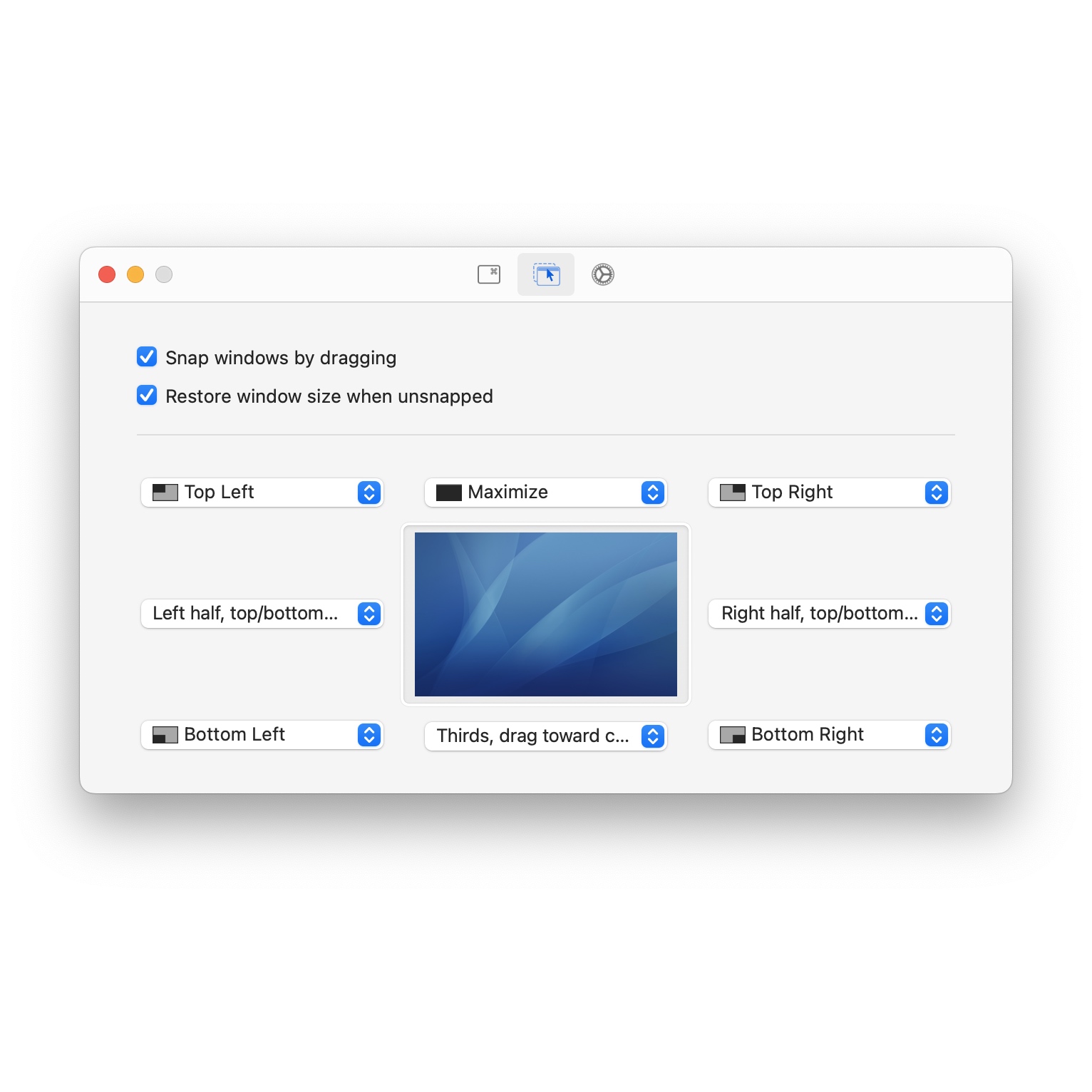
The single most infuriating thing about macOS for a Windows refugee is that there is no proper Aero Snap. Windows users massively underestimate how much they lean on this — drag to an edge to fill half the screen, snap to maximize, throw a window to the next monitor, all without thinking.
Rectangle brings that whole workflow to macOS in about ten seconds of setup. You can:
- snap windows left and right;
- maximize an app instantly;
- move windows between monitors;
- use keyboard shortcuts instead of dragging (
Ctrl+Option+←for the left half, and so on); - build your own layouts.
A concrete example from my day: instead of manually dragging and resizing a browser on the left, an IDE on the right, and a terminal below, I just hit a few shortcuts and I'm working.
The free version covers 95% of people. Rectangle Pro ($9.99, one-time — not a subscription, thank goodness) adds custom sizes, "throw" gestures, and window groups.
Why it helps: it restores my most basic window reflex, then disappears into the background. Within a day I forgot it was even a third-party app.
A small contrarian note: if you already pay for BetterTouchTool, you may not need Rectangle. But as a focused, free, do-one-thing-well tool, it's hard to beat.
AltTab (Free · open source)

This is one of the biggest behavioral gulfs between the two systems. On Windows, Alt+Tab means "switch between actual windows." On macOS, Cmd+Tab means "switch between applications." Sounds trivial — until you have three Finder windows and two browser windows and Cmd+Tab treats each app as a single blob.
AltTab replaces the switcher with the exact Windows-style experience:
- live previews of every individual window;
- switching between multiple windows of the same app;
- full keyboard navigation;
- remappable to whatever keys you like.
Why it helps: this is the app I miss most when I sit at a Mac that doesn't have it. For anyone juggling many documents, terminals, and editors, it's the first thing I install. Free and open source.
Notepad++ (new macOS version) (Free · open source)
There's something genuinely emotional about losing a tool you've used for years, and for a lot of Windows people that tool is Notepad++. It's not an IDE. It's not trying to replace VS Code. It's just a lightweight, instant-launch editor you reach for to:
- inspect a config file;
- quickly edit some JSON;
- compare two blobs of text;
- strip formatting from something you pasted;
- make one tiny change without ceremony.
macOS has plenty of great editors, but many Windows users specifically want that feeling back, and the newer macOS builds/ports finally deliver it.
Why it helps: sometimes I don't want to spin up VS Code just to glance at a .env file. Notepad++ scratches the "just give me a fast plain-text scratchpad" itch that TextEdit never quite satisfies.
Honest caveat: Notepad++ on macOS has historically come via community ports/wrappers rather than a fully native build — check you're getting a maintained one. If it feels off, BBEdit (great free tier) or Sublime Text are rock-solid native alternatives.
Mac Explorer (that's us!) (Free trial · paid versions available — https://mac-explorer.com)
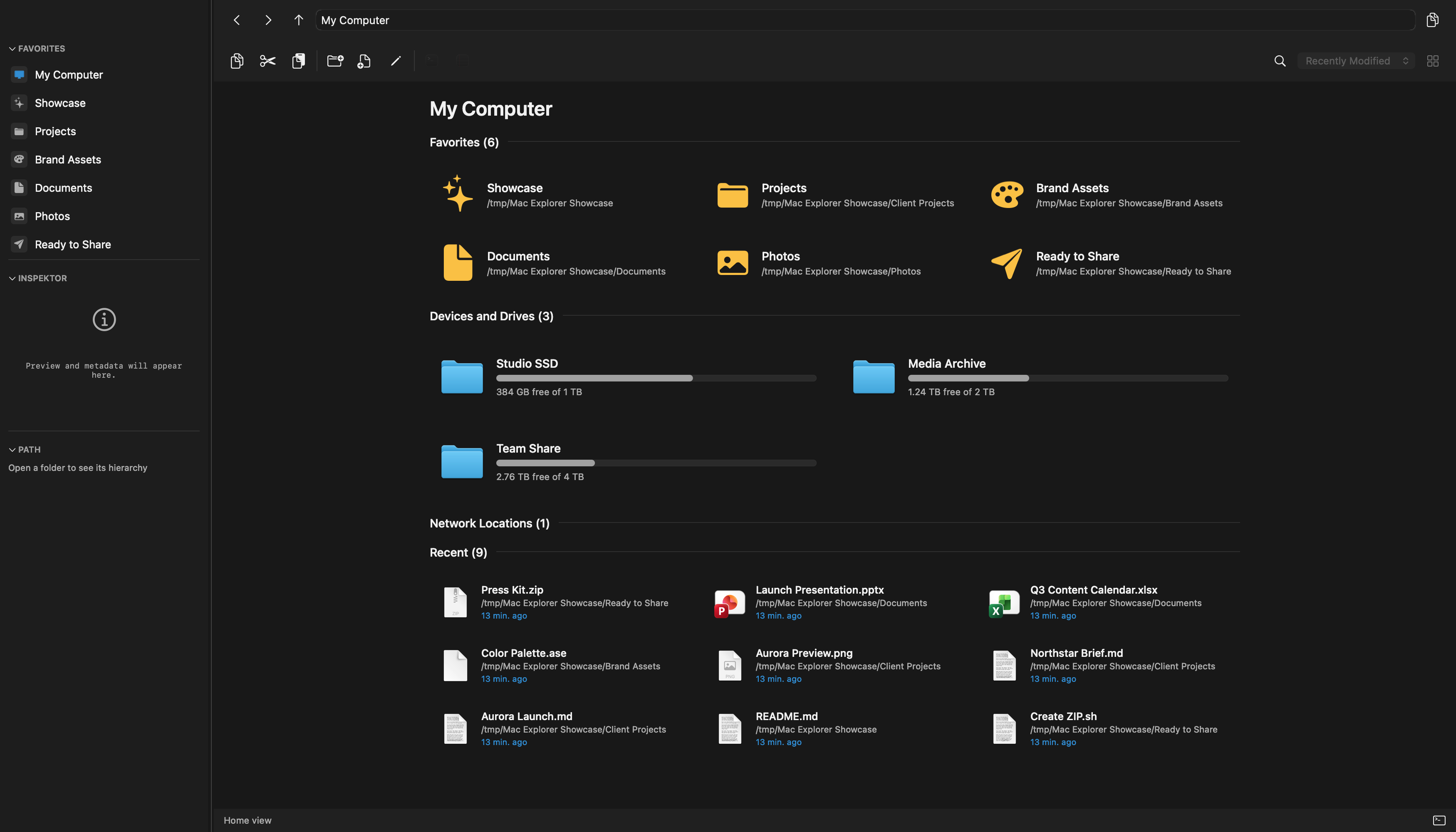
Full disclosure: this is our app, so take the enthusiasm with a grain of salt. But it exists precisely because Finder is such a culture shock coming from Windows Explorer. After years with Explorer, I kept reaching for things Finder just doesn't offer: a more information-dense interface, clearer visibility into file operations, faster navigation, and developer tooling baked right in.
That frustration is literally why I started building Mac Explorer. The goal was simple: a file manager that feels natural for people coming from Windows, while still respecting macOS design principles. The things that help me every day:
- navigation built around the Windows Explorer shortcuts I already know (address bar editing, back/forward, quick jumps);
- faster navigation;
- opening an integrated terminal right where you are;
- contextual Git information in the file list;
- better, more visible file operations;
- developer-oriented features throughout.
Why it helps: Finder isn't bad — it's just optimized for a different audience. Mac Explorer puts the file manager back in the hands of people who actually wrangle files and code all day.
Because I'm biased here, the fair thing to say is: try it against Finder for a week and decide for yourself. If your workflow is light, Finder plus a couple of Rectangle shortcuts might be all you need.
Radix — reclaim disk space (Free · paid versions available)
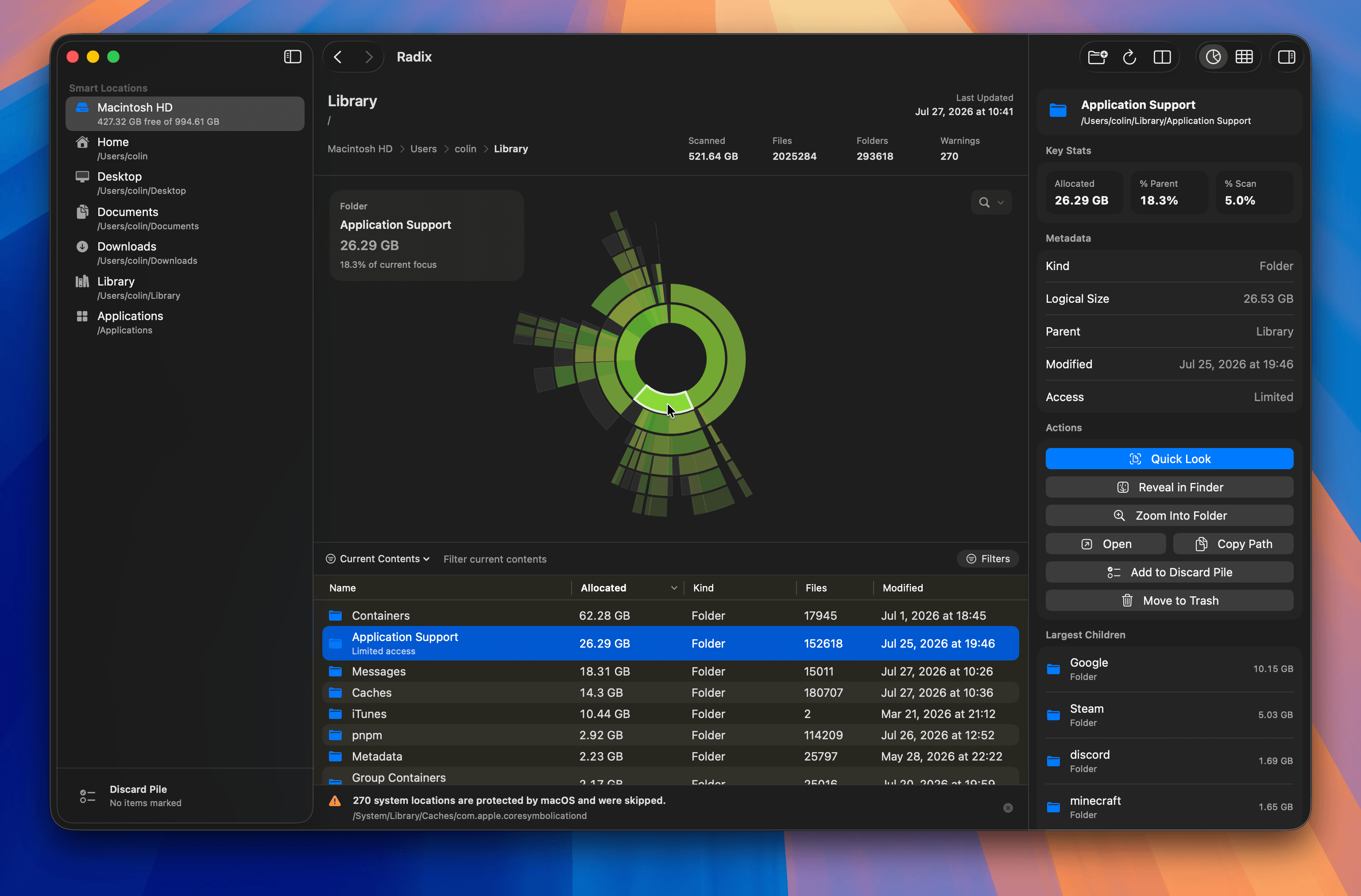
Windows people have a reflex: something feels full, so you fire up WinDirStat or TreeSize and answer the eternal question — "where did all my disk space go?" macOS's built-in storage tools are shallow and vague by comparison.
Radix gives you a proper analysis of your storage, hunting down:
- large files;
- forgotten downloads;
- stale caches and unused data;
- apps quietly hoarding gigabytes.
Why it helps: SSD upgrades on a Mac are absurdly expensive, so every gigabyte matters. A few forgotten Docker images or old Xcode simulators can eat hundreds of gigabytes, and a good visual disk map turns "my Mac is full and I have no idea why" into a two-minute cleanup.
Fair alternatives to weigh: DaisyDisk ($9.99) and GrandPerspective (free) are very mature at the same job. Radix is the newer take — compare before you commit.
Task Manager (TMOG) (Free)

On Windows, Ctrl+Shift+Esc is pure muscle memory: instantly you see what's running, what's chewing CPU, what's eating RAM, and what's frozen. Activity Monitor exists on macOS and works, but it's buried, slower to reach, and a lot of people find it less approachable.
TMOG is a more modern, friendlier process overview — a clean list with the columns you care about and an obvious way to kill the offender.
Why it helps: when Docker starts thrashing, a browser tab goes rogue, or some background process misbehaves, I don't want to hunt through menus. I want a task list, the culprit, and a kill button. This restores that reflex.
SoundSource ($49 one-time · v6 upgrade $25)
Windows has per-app volume built right into the mixer. macOS gives you... one master volume, and that's basically it. SoundSource from Rogue Amoeba fixes this properly:
- per-application volume;
- per-app output routing (send Spotify to your speakers, Zoom to your headphones);
- a system-wide EQ;
- microphone controls;
- it even makes the volume keys work over HDMI/DisplayPort outputs.
Why it helps: if you're constantly juggling headphones, external monitors, a mic, and multiple speakers, routing different apps to different outputs is a genuine daily quality-of-life win.
The honest gripe: $49 is steep for something Windows gives away free. It's excellent software from a legendary Mac developer, but if you only want the basics, the free, open-source BackgroundMusic covers per-app volume — just with rougher edges.
Microsoft Office for macOS (Microsoft 365 subscription · standalone Office 2024 one-time also exists)
This one sounds obvious, but it's worth saying: a lot of Windows switchers assume they must completely rebuild their workflow on a Mac. You don't. Office on macOS is genuinely good, mature, and near-identical to the Windows version — Word, Excel, PowerPoint, and Outlook all with excellent compatibility.
Why it helps: the rest of the world sends .docx and .xlsx, and Apple's iWork apps still mangle complex formatting on round-trips. If you exchange serious documents with Windows users, keeping Office is simply the practical choice — track changes, heavy Excel formulas, and PowerPoint animations all just work.
The contrarian view: if you don't collaborate on heavy documents, Office is an expensive subscription for a familiar UI you may not need. LibreOffice (free) or Apple's iWork (free) are legitimate alternatives — but for professional interoperability, Office still wins.
Part 2 — Bonus apps that just make my dev life better
These don't make macOS more Windows-like. They're here because macOS, once you accept its way of doing things, becomes a genuinely great dev machine — and these tools take it further.
Raycast (Free · Pro from ~$8/mo)
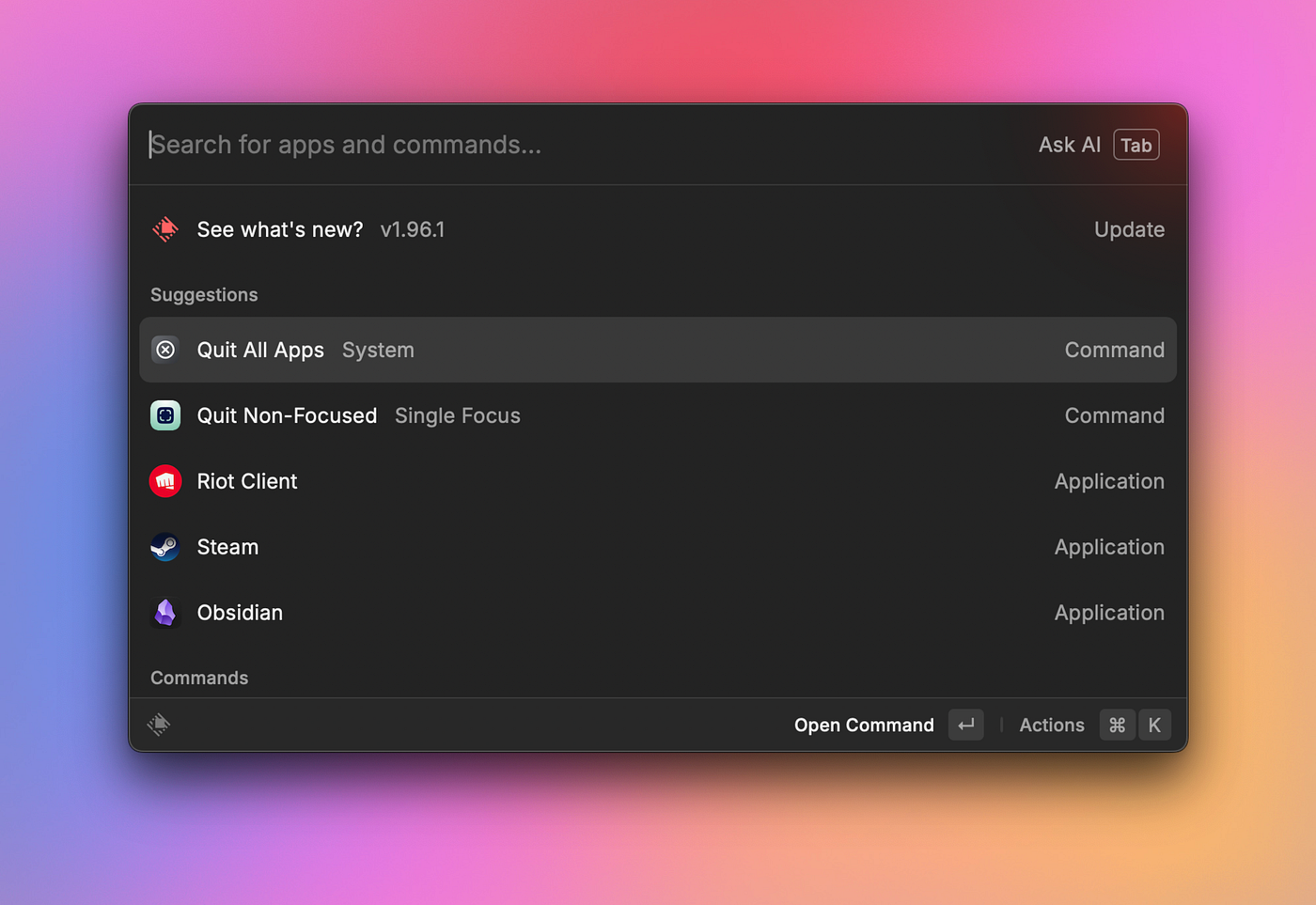
Spotlight on steroids, and honestly it replaced several separate tools for me at once: app launcher, clipboard history, snippets, scripts, quick actions, calculations, and a huge extension store. For a developer it becomes a genuine command center.
Why it helps: it's the keyboard-driven hub for everything. The clipboard history alone justifies it, and most of what I use is free.
TablePro (Free and open source)
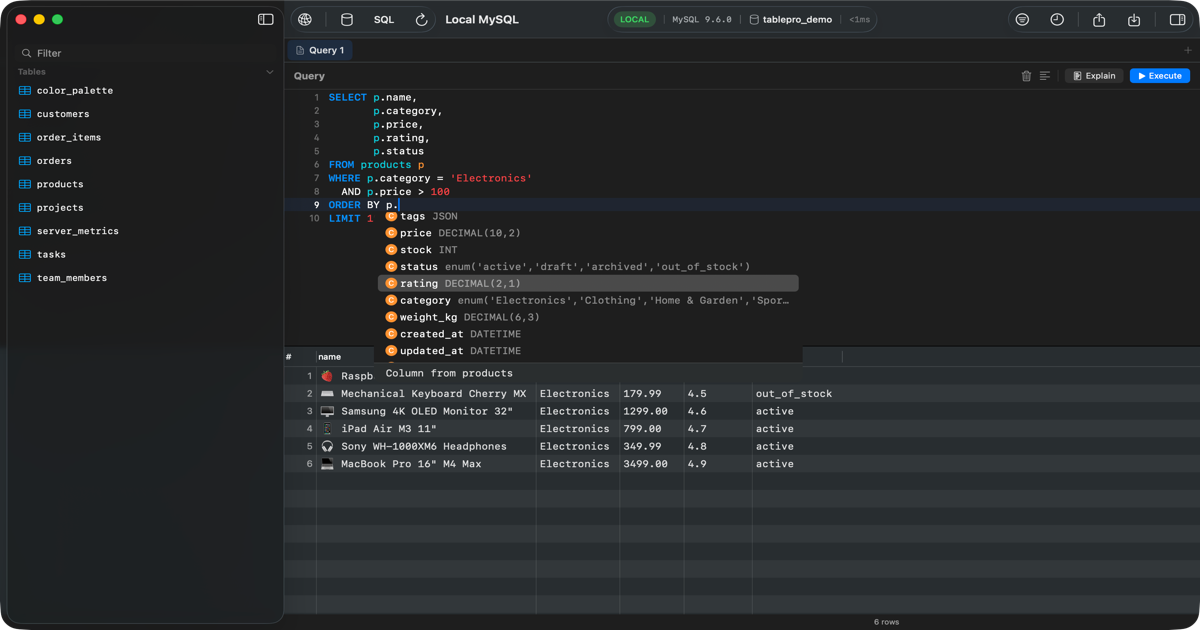
A beautiful, fast, native Swift database client that speaks MySQL, PostgreSQL, MongoDB, Redis, SQLite, and over twenty other engines through native drivers — no Electron, no JDBC.
Why it helps: it's quick to open and pleasant to actually work in — a rare combination for a database GUI. The whole app, including the SQL editor, data grid, and MCP server, is free and open source, with an optional license just for iCloud sync across Macs.
RequestKit (Free · paid options)

A lightweight, native macOS API/HTTP client for testing REST APIs, debugging, and poking at backend services.
Why it helps: if you've watched Postman grow heavier and more account-gated every year, a lean native alternative is a breath of fresh air — no login walls, no cloud-sync nagging.
Warp (Free · paid team tiers)
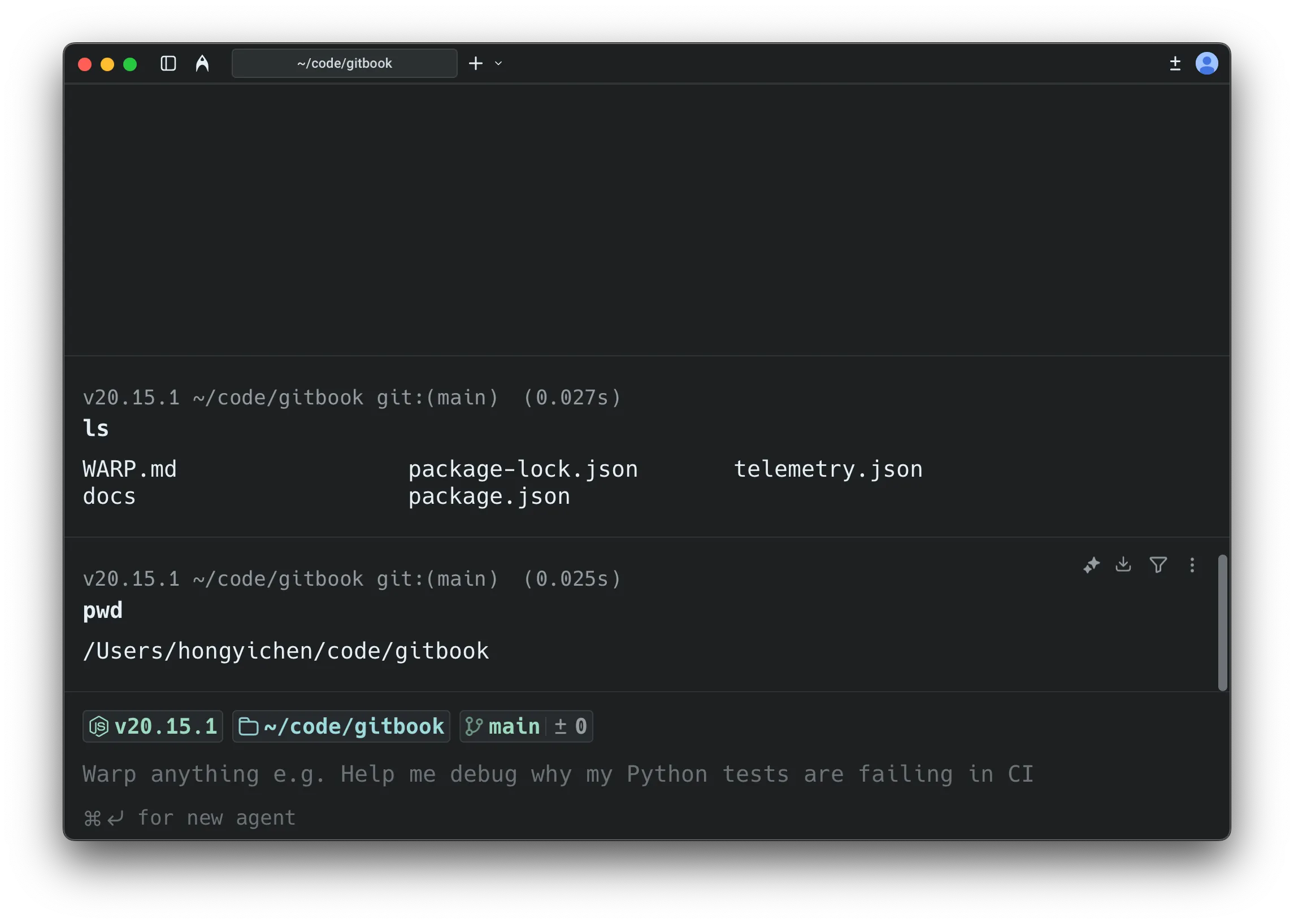
A modern, GPU-accelerated terminal built for developers. Compared to a traditional terminal you get block-based command output (each command + its output is a selectable unit), a real text editor for the input line, better history, and AI assistance.
Why it helps: it makes the terminal feel like a 2026 app instead of a 1980s teletype.
Fair pushback: it's a closed-source terminal that has historically wanted an account login, which rubs some people the wrong way. If that bothers you, iTerm2 (free) or Ghostty (free, open source) are excellent.
Termius (Free tier · subscription for sync/premium)
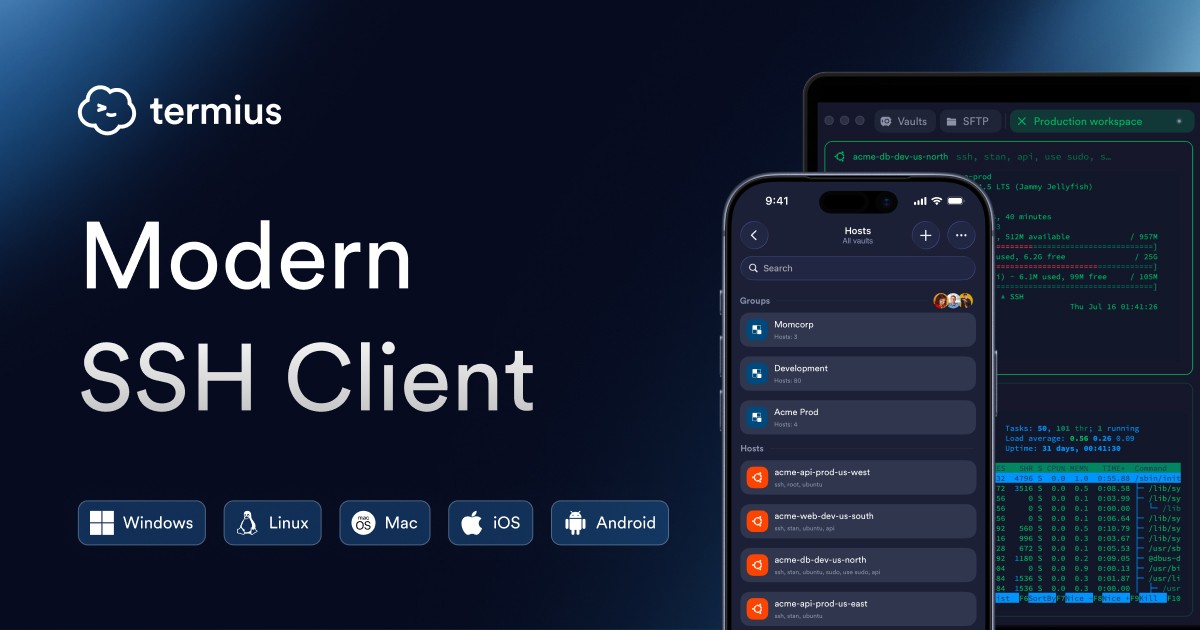
A polished SSH client with a proper host manager, saved credentials, and cross-device sync — great for managing servers, VPS machines, and cloud environments.
Why it helps: once you're past a handful of hosts, having them organized, searchable, and synced to your phone beats memorizing ssh one-liners every time.
AlDente (Free · Pro ~$14–20 one-time or Setapp)
MacBook batteries are excellent, but management still matters. AlDente caps your charge at, say, 80% to preserve long-term health — ideal if your laptop lives on a charger at a desk. Apple's "Optimized Charging" is a black box; AlDente gives you explicit control.
Why it helps: if you're plugged in all day, keeping the battery off a constant 100% meaningfully slows degradation.
Latest (Free · open source)
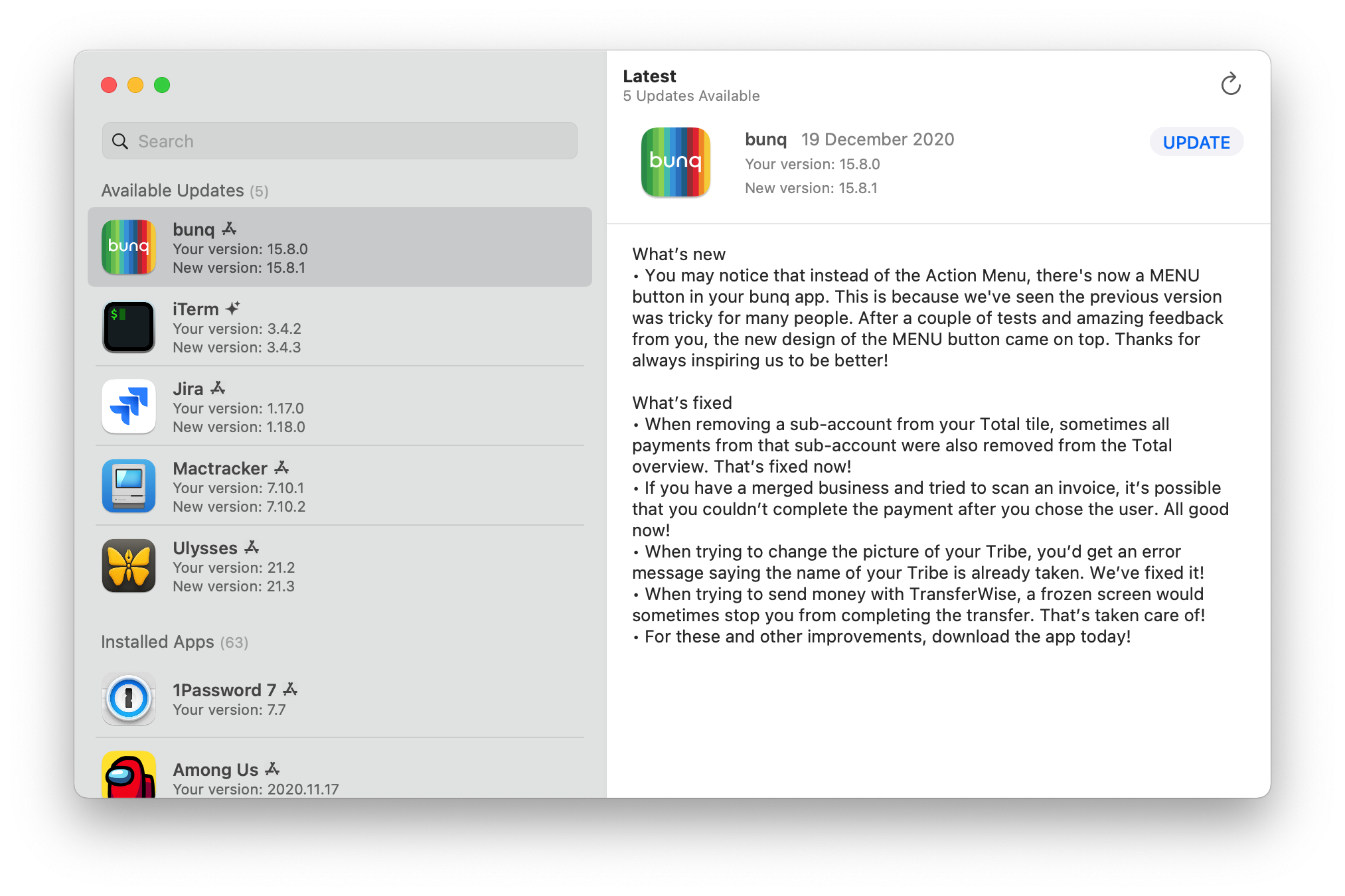
A simple maintenance tool that checks all your apps for updates in one place — including the ones outside the App Store that would otherwise each nag you separately.
Why it helps: it's the closest thing to a unified update manager, without a background agent constantly phoning home.
iStat Menus (~$12 one-time · or subscription/Setapp)

If you came from Rainmeter or advanced Windows monitors, this will feel familiar. Detailed system monitoring right in your menu bar: CPU, GPU, memory, network throughput, temperatures, fan speeds, battery, and every sensor you could want.
Why it helps: it's the "at a glance, what is my machine doing right now" dashboard macOS lacks — great for catching a runaway process before it becomes a problem.
Obsidian (Free for personal use · paid Sync/commercial add-ons)
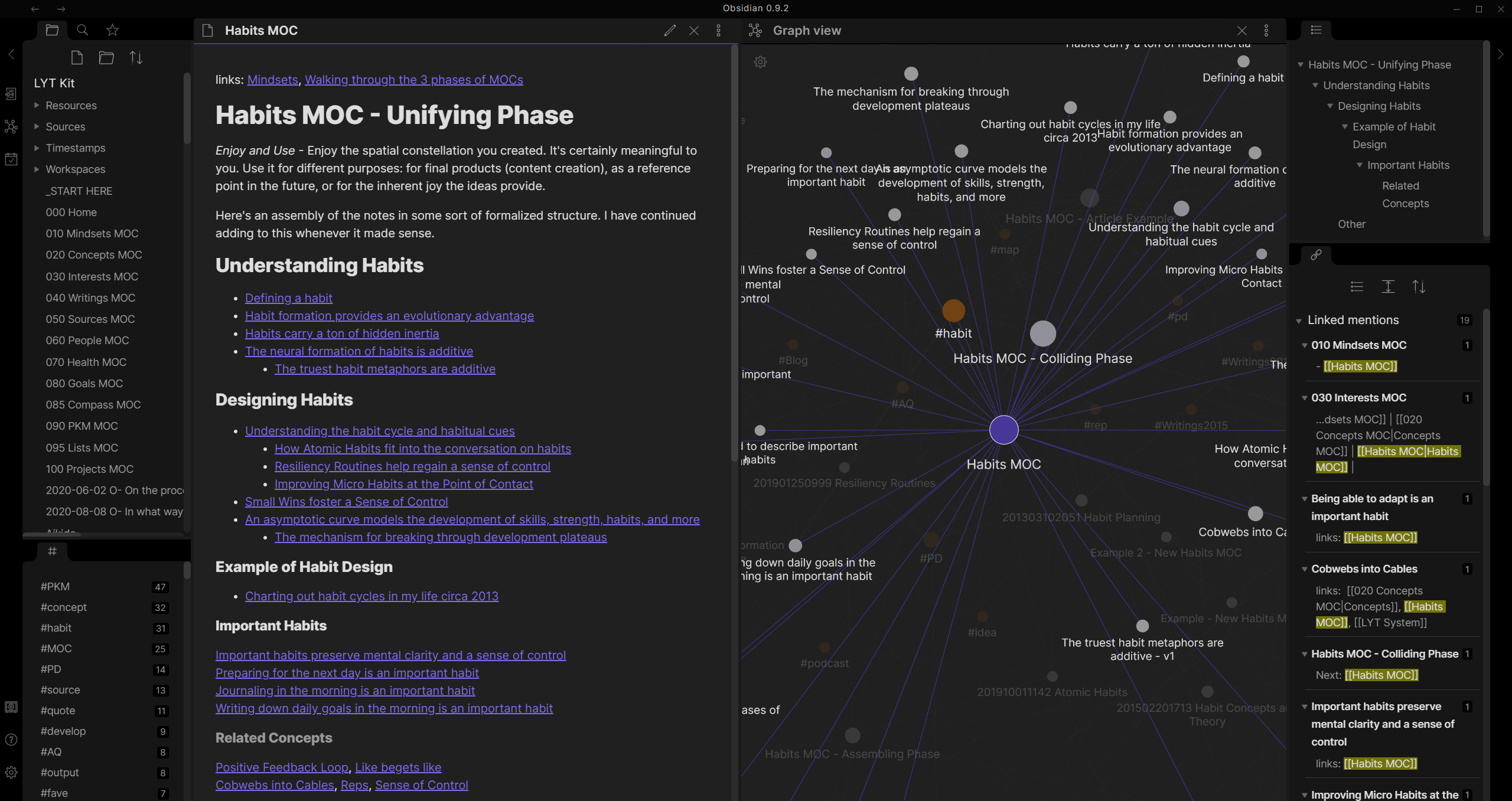
Not a Windows-replacement tool �� a productivity one. Obsidian became my personal knowledge base for notes, ideas, documentation, research, and project thinking. It's local-first and Markdown-based, so your notes are plain .md files on your disk.
Why it helps: the local-first, no-lock-in approach fits the same values that make macOS pleasant — no ads, no tracking, your data stays yours. It's my second brain for dev notes and snippets.
Final thoughts
Switching from Windows to macOS isn't really about finding a "better" operating system. It's about reconciling two different philosophies. Apple optimizes for simplicity, consistency, controlled experiences, and fewer decisions. Windows traditionally optimizes for flexibility, compatibility, customization, and power-user workflows. Neither is universally correct — the mistake is assuming one must completely replace the other.
If I had to be blunt about the trade-offs: a fair chunk of what Windows gives away for free — window snapping, per-app volume, a task manager, file cut-and-paste, sane mouse scrolling — costs a few dollars each on macOS. It adds up, and it's fair to be a little annoyed that Apple leaves these gaps for third parties to fill. But the tools are excellent, mostly one-time purchases, and the payoff is real.
For me, the best setup came from combining macOS's stability and hardware quality, Windows-style productivity workflows, and a handful of developer-focused utilities. After installing these, my Mac stopped feeling like a foreign operating system — it became my environment. And that's probably the biggest advantage of modern platforms: you don't have to accept every default. You can shape the system around the way you actually work.