The Windows Explorer alternative for Mac
You cannot install Windows File Explorer on macOS, but Mac Explorer brings across its core interaction model: familiar shortcuts, an editable address bar, My Computer, an embedded terminal, and Git.
If you switched from Windows to macOS and still press Enter expecting a file
to open, reach for Backspace to go back, or look for F2 before renaming,
you are not asking for Windows on a Mac. You are asking to keep a fast,
well-learned way of working with files.
Mac Explorer is a native macOS file manager built for exactly that purpose. It recreates the logic of Windows File Explorer — not the visual design of Windows 11 — and combines it with native Mac technologies and developer-focused tools. The result is a familiar file workflow that belongs on macOS.
Can you install Windows File Explorer on a Mac?
No. Windows File Explorer is part of the Windows shell, and Microsoft does not offer a macOS version. Finder remains a required part of macOS and continues to handle Open and Save dialogs, the desktop, AirDrop, iCloud, and system integrations.
That does not mean Finder must be your main window for everyday file work. Mac Explorer is a standalone app that can open folders, manage files, use mounted volumes, and work alongside Finder. It does not patch or replace a system process, so the two can coexist without pretending that macOS is Windows.
Familiar shortcuts without remapping the whole Mac
Mac Explorer includes the interactions Windows users expect:
Enteropens the selected file or folder;Backspacegoes back through navigation history;Deletemoves the selection to the macOS Trash;F2starts renaming and selects the name without the extension;Cmd+Lturns the breadcrumb bar into an editable path;- mouse Back and Forward buttons navigate history;
- familiar multi-selection and drag-and-drop behavior make bulk work direct.
These are not optional patches applied to Finder. They form one consistent interaction model across the entire app.
"My Computer" for macOS
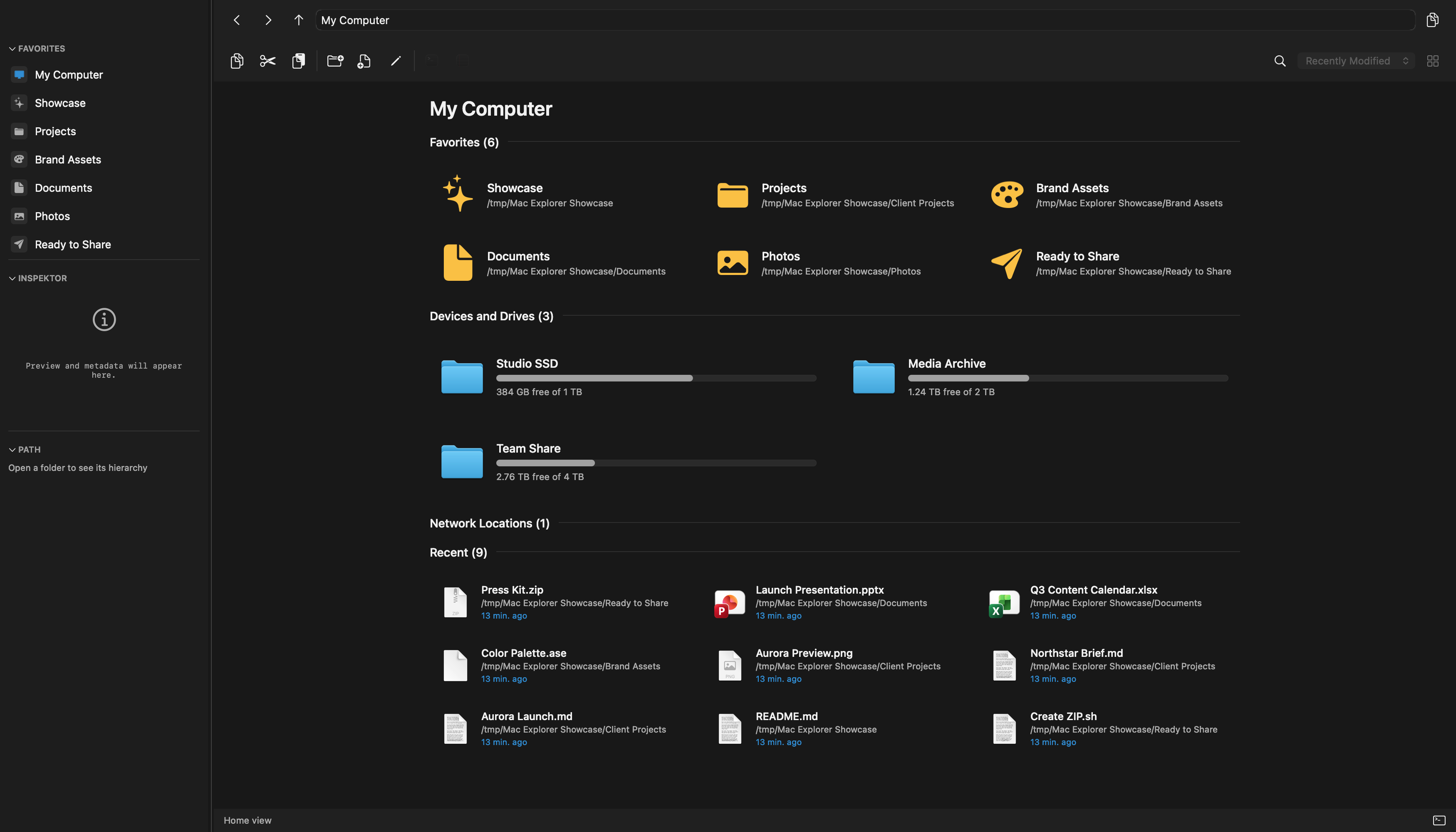
Windows users expect "This PC" to provide a clear starting point for disks and common locations. Mac Explorer's "My Computer" brings that idea to Mac with favorites, mounted volumes, storage usage, and recent files.
The implementation remains native to macOS. External disks and shares mounted by the system appear as volumes, Quick Look uses Apple's framework, deleted files go to Trash, and Open With, Services, and Quick Actions stay available. Mac Explorer borrows the interaction model while respecting the platform.
A better address bar for people who work with paths
Finder offers "Go to Folder" and an optional path bar, but Windows users often
expect the address itself to be a working control. In Mac Explorer, the bar is
both clickable breadcrumbs and a text field. Click a segment to move through
the hierarchy, or press Cmd+L and type or paste a path directly.
That matters when paths arrive from build logs, documentation, a terminal, or another developer. The current location remains visible and immediately editable instead of becoming a separate dialog.
More than a Windows File Explorer clone
Mac Explorer uses Windows File Explorer as a starting point, then adds tools that neither Finder nor standard File Explorer places in the same view.
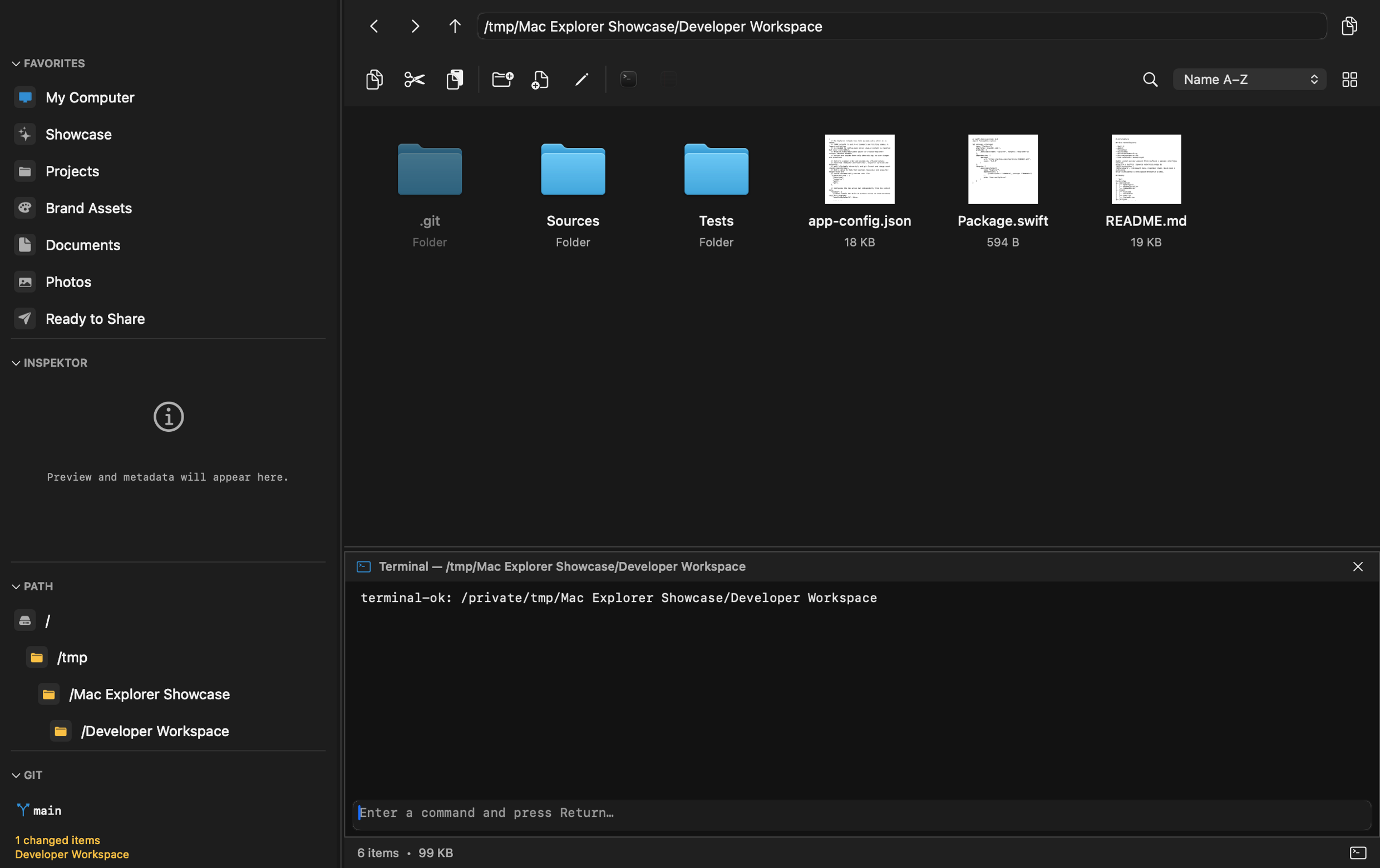
An embedded terminal that follows the folder
Open the terminal panel and it starts in the directory you are browsing. Change folders and the terminal follows. The process launches lazily, only when the panel is first used, so people who do not need it do not pay a constant startup cost.
Git context without opening an IDE
Inside a repository, the sidebar shows the current branch and working-tree changes. You can search branches and switch safely. Outside a repository, the Git section disappears, keeping the interface focused.
Live RegExp filtering
Press Cmd+Shift+F to filter the visible folder as you type. The explicit
RegExp mode supports full regular expressions, which is useful for generated
files, numbered assets, logs, or any directory where a simple substring is not
enough.
Technical metadata within reach
Detailed list view can expose MIME type, POSIX permissions, owner, and group. The Inspector loads previews and richer image, PDF, and document metadata asynchronously. You do not need to open several tools merely to understand the selected file.
Your own actions, without a plugin SDK
Local applications and scripts can appear in the toolbar or context menu. They can receive the selection, current folder, or project root and can be limited by file type, selection state, or RegExp. Configure them through native settings or optional comment-preserving JSONC.
What Mac Explorer deliberately leaves to Finder
Mac Explorer does not replace Finder everywhere and does not need to. Finder is still the best place for several Apple-specific workflows:
- AirDrop and direct Apple sharing;
- iCloud and device-management integrations;
- tags, Smart Folders, Gallery, and Column view;
- system Open and Save dialogs.
Mac Explorer still has no tabs. That focused single-pane layout is the main interface trade-off for people who want the ordinary Windows File Explorer model.
For work beyond local disks, it also supports more than 140 cloud drives, object-storage services, remote servers, and protocols. FTP, SFTP, WebDAV, S3, Google Drive, Dropbox, OneDrive, network shares, and many specialist providers all fit the same workflow and are included in the $9.99 price. Some sources use a free add-on installed only when needed, keeping the base app lean without turning connectivity into a paid upgrade.
The included "Open in Mac Explorer" Quick Action provides a bridge from Finder. Invoke it on a folder to open that location; invoke it on a file to open its parent folder with the file selected.
Privacy and performance
The Mac Explorer core requires no account, contains no telemetry, and does not send file names or contents to the developer. Networking is used for licensing, updates, and cloud or server sources and scripts explicitly configured by the user — not for behavioral tracking.
The first window is designed to appear before configuration, licensing,
updates, and Services finish loading. Directory enumeration is incremental,
thumbnails and terminal startup are lazy, caches are bounded, and FSEvents
update folders without permanent polling. In a documented measurement on an M4
Max, the average time from main() to the first visible window was 284.21 ms.
That is a transparent measurement of one environment, not a guarantee for every
Mac.
Mac Explorer vs Finder vs Windows File Explorer
| Feature | Mac Explorer | Finder | Windows File Explorer |
|---|---|---|---|
| Platform | macOS 14+, Apple Silicon | macOS | Windows 10 and 11 |
| Price | $9.99 one-time / 2 devices, 30-day trial | Included with macOS | Included with Windows |
Windows-style Enter, Backspace, Delete, F2 | Yes, built in | No as a complete default model | Yes |
| Editable breadcrumb address bar | Yes | Separate path and "Go to Folder" workflows | Yes |
| "My Computer" / "This PC" | Favorites, volumes, storage use, recents | Sidebar and Locations | Native "This PC" |
| Live RegExp folder filter | Yes | No direct equivalent | No documented full RegExp mode in the standard view |
| Embedded terminal | Yes | No | No; Windows Terminal is separate |
| Git in the sidebar | Status, branch, switching | No | No |
| Technical columns | MIME, chmod, owner, group | Rich Mac metadata, but not this developer-focused set | Windows metadata and ACLs |
| Custom actions | Toolbar and context menu, GUI or JSONC, contextual filters | Quick Actions, Services, Shortcuts, Automator | Shell extensions, Send To, and external tools |
| Cloud, storage, and server sources | 140+ included in the standard price | iCloud and mounted locations | OneDrive and mounted network locations |
| Tabs | No — focused single-pane workflow | Yes | Yes in Windows 11 |
| Core privacy | No account or telemetry; remote sources are user-configured | Depends on macOS and enabled Apple services | Depends on Windows, Search, OneDrive, and diagnostic settings |
Who is Mac Explorer for?
Try Mac Explorer if you:
- recently moved from Windows and want your file-management muscle memory back;
- prefer ordinary Windows File Explorer over a dual-pane commander;
- work with local projects, cloud storage, remote servers, terminals, Git, or technical metadata;
- want predictable keyboard and mouse navigation;
- prefer a focused, native app over modifying Finder with many separate tweaks;
- value a one-time purchase and a core without telemetry.
Stay primarily with Finder if tabs, tags, Gallery, Column view, AirDrop, iCloud, and Apple devices define your workflow. Consider QSpace, ForkLift, Commander One, Path Finder, or Marta if multiple panes, specialized transfer queues, archive engines, or modular workspaces matter more than the familiar single-pane Explorer model. Remote servers and cloud storage alone are no longer a reason to leave Mac Explorer: 140+ sources are supported in the base price.
Start with a 30-day trial
Mac Explorer costs $9.99 as a perpetual license for two devices, with a 30-day
trial long enough to use it on real folders and projects. The simplest test is
also the most revealing: open the directories you work with every day and see
whether Enter, Backspace, F2, the editable address bar, terminal, and Git
make the Mac feel more immediate.
Finder will still be there when you need it. Mac Explorer gives you a better place to do the rest.