Mac Explorer vs Finder — two different approaches to file management on Mac
Finder is integral to macOS and handles Apple services best. Mac Explorer is a native alternative that brings Windows File Explorer shortcuts, an embedded terminal, Git, and RegExp filtering to everyday folder work.
Mac Explorer was built for people who enjoy using a Mac but want a more direct way to manage files. It combines the familiar navigation model of Windows File Explorer with a native macOS app, fast filtering, an embedded terminal, Git, and custom actions available without leaving the window. Our philosophy is simple: fewer layers between intent and action, technical tools within reach, and no overhead from features you are not currently using.
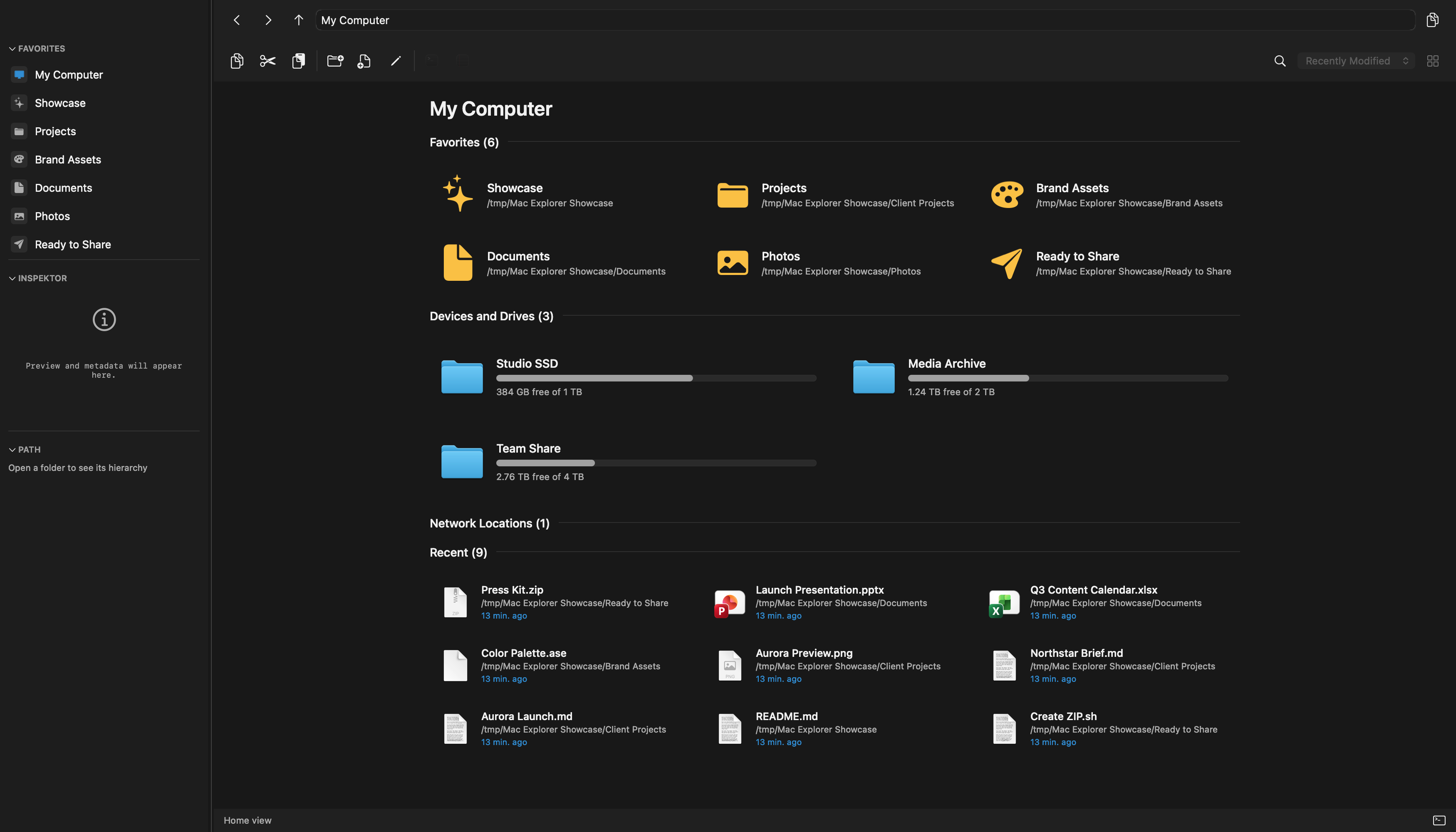
Finder is a fundamental part of macOS and remains essential to the system. Mac Explorer does not attempt to remove it or pretend that every Apple integration can be replaced. Instead, it offers a more deliberate approach to everyday file management — particularly for people familiar with Windows File Explorer or those who work with code, terminals, and automation.
Finder offers far more than its simple appearance suggests
Finder comes with macOS and is the file manager most deeply integrated with the system. It offers four mature views: icons, list, columns, and gallery. It supports tabs, tags, Smart Folders, Quick Look, the Preview pane, grouping, sharing, AirDrop, and Quick Actions. It also manages iPhones and iPads connected to a Mac and provides the natural interface for iCloud Drive and many other system features.

Those are meaningful strengths. Column view is excellent for exploring deep folder hierarchies, Gallery works well for photos, and tags and Smart Folders organize files beyond their physical directory structure. Apple also provides useful contextual actions: without opening another app, you can rotate or mark up images, trim media, combine PDFs, and run actions from Shortcuts or Automator.
Finder is therefore the natural choice when complete compatibility with macOS conventions and Apple services matters most. Its limitations tend to appear not in basic access to files, but in how many frequently repeated tasks are carried out.
What Mac Explorer does differently
Mac Explorer is a standalone, native file manager built with Swift and AppKit.
It is not a Finder extension. It uses a single-pane navigation model inspired
by Windows File Explorer: Enter opens, Backspace goes back, Delete moves
an item to the Trash, F2 renames it, and the mouse Back and Forward buttons
navigate through history. The address bar works both as clickable breadcrumbs
and as an editable path field opened with Cmd+L.
The biggest difference is not the shortcuts alone. Mac Explorer brings file management together with tools that would normally require switching apps:
- an embedded terminal opens inside the window and starts in the current folder;
- the Git section shows the current branch and changes, lets you search for and safely switch branches, and disappears when it is not relevant;
- the current folder can be filtered as you type, with an explicit RegExp mode;
- detailed list view can display MIME type, owner, group, and
chmodvalues; - the Inspector loads previews and rich metadata asynchronously;
- local scripts and applications can be pinned to the toolbar or context menu and limited by file type or regular expression;
- settings are available through a native panel and a comment-preserving JSONC file, with valid changes applied live;
- creating a file accepts a complete filename and relative subpath immediately;
- operation history supports undo and redo, with warnings before actions that could remove data.
Mac Explorer's interface is deliberately narrower. It does not include tabs, Column view, Gallery, tags, Smart Folders, or iPhone management. That is the trade-off for a focused, single-pane workflow.
For work beyond local disks, Mac Explorer connects directly to more than 140 cloud drives, object-storage services, remote servers, and protocols, including FTP, SFTP, WebDAV, S3, Google Drive, Dropbox, and OneDrive. Those sources are included in the standard price and appear in the same focused workflow; some use a free add-on installed only when needed.
Performance and privacy
The Mac Explorer core has no account system or telemetry, and file names and contents are not sent to the developer. Network traffic is used for licensing, updates, and remote sources or scripts explicitly configured by the user — not for behavioral tracking.
The app is designed to show its first window before loading configuration,
licensing, updates, and Services. In a project measurement taken on an M4 Max,
the average time from main() to the first visible window was 284.21 ms. This
is a measurement of one local build, not a promise of identical results on
every Mac. Finder is a system process and is usually already running, so a
single launch-time number would not provide a fair comparison between the two.
Finder privacy is part of macOS and the services you choose to use. Local file management does not require a separate Finder account, while iCloud Drive, sharing, and other Apple services have their own network behavior. It would be misleading to attribute the telemetry policy of the entire operating system to Finder alone.
Which one should you choose?
Choose Finder if you
- want to use only tools included with macOS;
- rely heavily on tags, Smart Folders, iCloud Drive, or Apple devices;
- need Column view, Gallery, and multiple tabs;
- prioritize compatibility with every system integration.
Try Mac Explorer if you
- moved from Windows and still miss its shortcuts and navigation model;
- frequently open a terminal, inspect Git, or copy file paths;
- want to filter local filenames with a regular expression;
- need technical metadata without jumping between tools;
- want to run your own scripts without building a Finder extension;
- prefer a focused, dark, single-pane interface over more views and tabs.
Use both if you want the best of both workflows
For many people, this is the most natural setup. Finder remains part of macOS and can handle AirDrop, iCloud, tags, and Apple devices. Mac Explorer can become the main window for everyday work with folders and projects. The included "Open in Mac Explorer" Quick Action moves from Finder to the same location; if you invoke it on a file, Mac Explorer opens its parent folder and selects it.
Comparison table
| Feature | Mac Explorer | Finder |
|---|---|---|
| Core philosophy | Single-pane, Windows File Explorer workflow on macOS | System file manager built around Apple conventions |
| Price | $9.99 one-time, 2 devices, 30-day trial | Included with macOS |
| Platform | macOS 14+, Apple Silicon | macOS; included with the system |
| Windows keyboard model | Yes: including Enter, Backspace, Delete, and F2 | Not by default, although some behavior can be approximated with shortcuts |
| Editable path bar | Yes, Cmd+L, combined with breadcrumbs | "Go to Folder" and a path bar, but a different workflow |
| Live RegExp folder filter | Yes | No direct RegExp mode in the folder view |
| Embedded terminal | Yes, synchronized with the current folder | No; an external terminal can be opened through actions |
| Git inside the file manager | Yes: branch, status, and branch switching | Not built in |
| Technical columns | MIME type, chmod, owner, and group | Rich system columns, but not this developer-focused set |
| Custom actions | Local apps and scripts in the toolbar or context menu, with type and RegExp filters | Quick Actions, Services, Shortcuts, and Automator |
| Creating files and subpaths | A new file can receive its full name and relative subpath immediately | Creates folders by default; a new empty file requires another tool or action |
| Undo and redo | Dedicated operation history with warnings before data-removing actions | System undo for supported operations |
| Views | Icons and detailed list | Icons, list, columns, and gallery |
| Tabs, tags, and Smart Folders | No — the interface stays deliberately focused | Yes |
| Quick Look | Yes, using the system framework | Yes, with additional editing actions |
| AirDrop, iCloud, and Apple devices | Uses system integrations without recreating them as dedicated modules | Deepest integration |
| Cloud, storage, and server sources | 140+ included, including FTP, SFTP, WebDAV, S3, and major cloud drives | No full client for these protocols; supports iCloud and mounted locations |
| Core privacy | No account, telemetry, or transmission of file names or contents | Local work requires no separate account; Apple services follow system-wide policies |
| Performance | Native AppKit, lazy data, bounded caches; 284.21 ms to first window in the documented measurement | System process that is usually already running; deeply integrated with macOS |
| Best for | Windows switchers, developers, and people who prefer a direct workflow | Apple ecosystem users who rely on tags, tabs, Gallery, and Column view |