Best macOS file manager for developers
Six developer-focused file managers compared: Mac Explorer leads with an embedded terminal, Git, RegExp filtering, metadata, and automation; it also reaches 140+ sources, while alternatives specialize in transfer queues, dual-pane control, or modular workspaces.
A developer file manager should do more than display folders. It should keep the current path visible, expose useful metadata, move naturally between files and a shell, understand repository context, and make repetitive operations easy to automate. It should also stay fast when a project contains thousands of generated files.
Mac Explorer was designed around that workflow. Its terminal is embedded in
the file-manager window and follows the current directory. Git status and the
active branch appear only inside repositories. A live RegExp filter narrows the
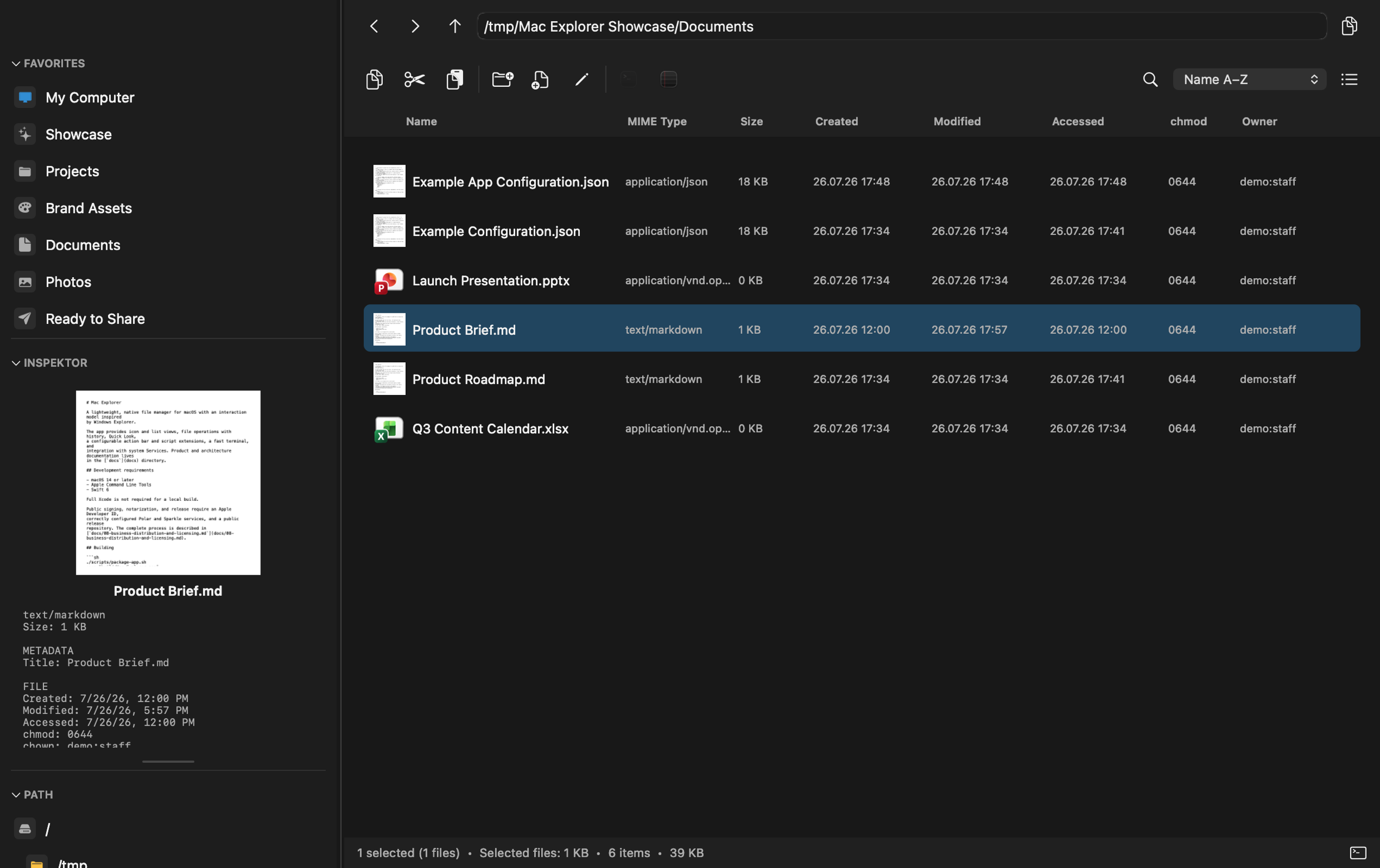
visible folder, while detailed list view can show MIME type, chmod, owner,
and group. Local tools and scripts become toolbar or context-menu actions
without requiring a plugin SDK.
That makes Mac Explorer our best overall choice for developers who want the file manager and their developer tools to stay in one focused window. When work extends beyond local repositories, it also supports more than 140 data sources in the standard price. Other file managers can still be better for dual-pane synchronization, archive-heavy work, or a deeply programmable commander. The right answer depends on how you prefer to work.
What matters in a developer file manager?
We evaluate developer-focused file managers across seven practical areas:
- Terminal workflow: embedded shell or merely an "Open in Terminal" action?
- Git context: can you see repository state without opening another app?
- Filtering and metadata: RegExp, MIME, permissions, ownership, and previews.
- Automation: scripts, command-line tools, shortcuts, and contextual rules.
- Local versus remote work: mounted volumes, SFTP, cloud storage, and sync.
- Performance: native UI, lazy work, bounded caches, and responsive folders.
- Privacy: telemetry, accounts, and whether file information stays local.
No app wins every category. Remote connections require provider credentials and network access by design, while a plugin-heavy commander asks more of the user than a focused GUI.
1. Mac Explorer — best overall across local and remote development
Mac Explorer brings the file browser, terminal, Git context, and automation into one native AppKit window. The terminal process is launched only when the panel is first opened, and it tracks folder changes automatically. Git appears contextually with the current branch, change count, branch search, and safe branch switching. When the current directory is not a repository, the section disappears and costs nothing in the interface.
The file view itself is unusually developer-friendly:
- live filename filtering with an explicit RegExp mode;
- MIME type, POSIX owner and group, and
chmodcolumns; - rich asynchronous metadata for images, PDFs, and documents;
- editable breadcrumbs and direct path entry with
Cmd+L; - copy-path actions and predictable Windows-style keyboard navigation;
- custom apps and scripts that receive the selection or current folder;
- conditions based on file type, selection state, and regular expressions;
- configuration through native settings or comment-preserving JSONC.
Performance is part of the architecture rather than a marketing toggle.
Directory enumeration is incremental, thumbnails and terminal startup are
lazy, caches are bounded, folder changes use FSEvents instead of polling, and
stale asynchronous results are prevented from changing a newer view. In a
documented M4 Max measurement, the first window appeared an average of 284.21
ms after main().
The core requires no account and contains no telemetry. Remote connections are initiated by the user and go to the configured provider rather than to Mac Explorer for behavioral tracking. More than 140 cloud drives, object stores, servers, and protocols are included in the $9.99 price for two devices, along with a 30-day trial.
Best for: local repositories, cloud and server sources, terminal-heavy work, technical metadata, small automation scripts, and developers who prefer a single focused pane.
2. ForkLift — best for synchronized transfers and deployment
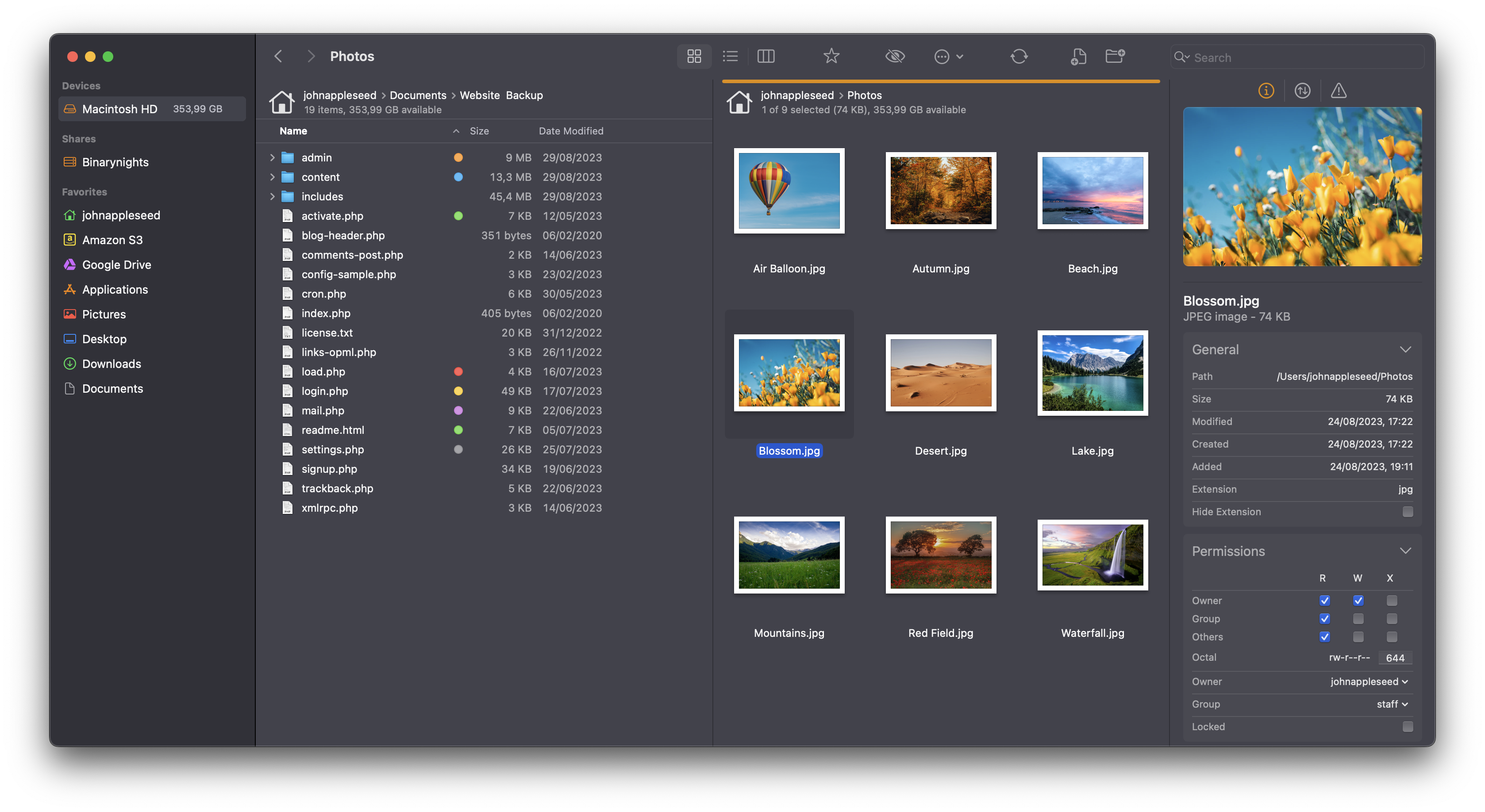
ForkLift is the strongest option here when development depends on dual-pane transfers and synchronization. It combines file management with SFTP, FTP, WebDAV, Amazon S3, Backblaze B2, Google Drive, OneDrive, Dropbox, SMB, AFP, NFS, remote editing, transfer queues, bandwidth controls, and fine-grained conflict handling. Mac Explorer reaches a broader catalog of 140+ sources; ForkLift goes deeper on transfer orchestration.
Its Git integration is broader than Mac Explorer's current scope: ForkLift can show status and perform add, commit, push, and pull. It also opens the current local path in Terminal, iTerm, Warp, Ghostty, and other terminal apps. The terminal is external rather than embedded, but the transfer workflow is far more extensive.
Best for: web developers, administrators, and deployment workflows that move files between local projects, servers, and cloud storage.
3. Marta — best for a programmable keyboard workflow
Marta is a lightweight native dual-pane manager with an embedded terminal, RegExp Quick Search, a controllable operation queue, archive browsing, disk analysis, text-based configuration, and a Lua plugin API. Nearly the entire app can be controlled from the keyboard, and terminal and file-manager directories can synchronize in both directions.
This makes Marta unusually programmable, but the tradeoff is a higher configuration barrier. Deeper customization means learning its DSL or Lua, while Mac Explorer exposes its public configuration in a native settings panel and keeps JSONC optional. Marta also remains in beta.
Best for: developers who want dual-pane keyboard control and enjoy building their own tools with Lua.
4. Path Finder — best modular developer toolbox
Path Finder can place terminal, preview, file information, hex editor, Size Browser, and other modules around one- or two-pane file views. FolderSync, Drop Stack, batch rename, archives, operation queues, and comparison tools make it useful when development work overlaps with large file-management tasks.
Its strength is breadth and configurability. Mac Explorer provides a more opinionated developer workflow with less setup, while Path Finder lets users construct a larger workspace from modules.
Best for: power users who want terminal and inspection modules alongside folder synchronization and advanced file operations.
5. Commander One — best for remote services and deep search
Commander One offers dual-pane browsing, unlimited tabs, content and RegExp search, archive support, binary and hex viewers, and a terminal emulator in its PRO edition. PRO also adds FTP, SFTP, WebDAV, Amazon S3, cloud services, and mobile devices.
It does not present Git as a dedicated repository context, but it is attractive when remote services, archive contents, and broad search matter more than a Git-aware local folder view. The free edition makes it easy to evaluate the core dual-pane workflow.
Best for: developers who want Total Commander-style navigation, remote services, and search across contents and archives.
6. QSpace Pro — best for a highly customized workspace
QSpace Pro supports 12 layouts, tabs, customizable columns, view profiles, Quick Launch for command-line tools, and opening a folder in a chosen terminal or editor. Optional extensions add remote servers, cloud storage, archive browsing, Stash Shelf, and advanced batch rename with RegExp.
It can become an elaborate project workspace, but its terminal remains external and remote capabilities are sold as extensions. Mac Explorer includes its main developer features and 140+ cloud, storage, and server sources in one purchase and one fixed interaction model.
Best for: developers who want several project locations visible at once and enjoy customizing almost every part of the interface.
Raycast is an excellent companion, not a replacement
Raycast deserves a place in a developer workflow even though it is not a file
manager. File Search, Script Commands, Quicklinks, extensions, clipboard
history, and a global command interface are excellent for finding or launching
something quickly. Assigning Mac Explorer a global Cmd+E shortcut in Raycast
creates a natural path from "find this project" to "work with this folder."
Mac Explorer handles continuous browsing, multi-selection, file operations, terminal context, and Git; Raycast remains the fast launcher across the whole system.
Developer-focused comparison
| App | Terminal | Git | RegExp | Technical metadata | Automation | Remote services | Privacy model |
|---|---|---|---|---|---|---|---|
| Mac Explorer | Embedded, follows folder | Status, branch, switching | Live folder filter | MIME, chmod, owner, group, Inspector | GUI and JSONC actions, scripts, contextual filters | 140+ sources included | No core account or telemetry; connections are user-configured |
| ForkLift | Opens external terminal | Status, add, commit, push, pull | Search and filters | Preview and file information | Command Line Tools and shortcuts | Extensive built-in support | No usage analytics; remote connections are user-configured |
| Marta | Embedded, two-way sync | Through actions or plugins | Quick Search | Configurable columns and preview | Lua plugins and DSL | Mounted volumes | Explicitly no data collection or sale |
| Path Finder | Module or separate window | Not a central product feature | Advanced filtering and selection | Information modules and hex editor | Modules and extensive settings | Primarily mounted locations | No declared usage analytics; license validation uses network |
| Commander One | PRO emulator | No dedicated repository section | Content, archives, and search | Binary and hex viewer | Configurable shortcuts | Extensive in PRO | Refer to current developer policy |
| QSpace Pro | Opens external terminals | No dedicated repository section | Filter and paid batch rename | Configurable columns and preview | Quick Launch and UI customization | Paid extension | Policy lists account and device data |
Our recommendation
For development, Mac Explorer provides a strong balance of embedded terminal, visible Git context, live RegExp filtering, technical metadata, automation, native performance, and privacy at a low one-time price. When work also spans cloud storage or remote servers, its 140+ included connections extend the same focused workflow beyond local repositories.
Choose ForkLift when synchronized transfers and deployment queues dominate. Choose Marta when Lua and keyboard-first dual-pane work are the attraction. Choose Path Finder for a modular toolbox, Commander One for remote services and deep search, or QSpace Pro for a highly customized multi-pane workspace. Pair any of them with Raycast when you want a system-wide launcher.