Best Finder alternatives for Windows users
Seven Finder alternatives compared for Windows switchers: Mac Explorer combines the everyday File Explorer workflow with an embedded terminal, Git, and RegExp filtering; other options emphasize multiple panes, transfer queues, archives, or Finder enhancements.
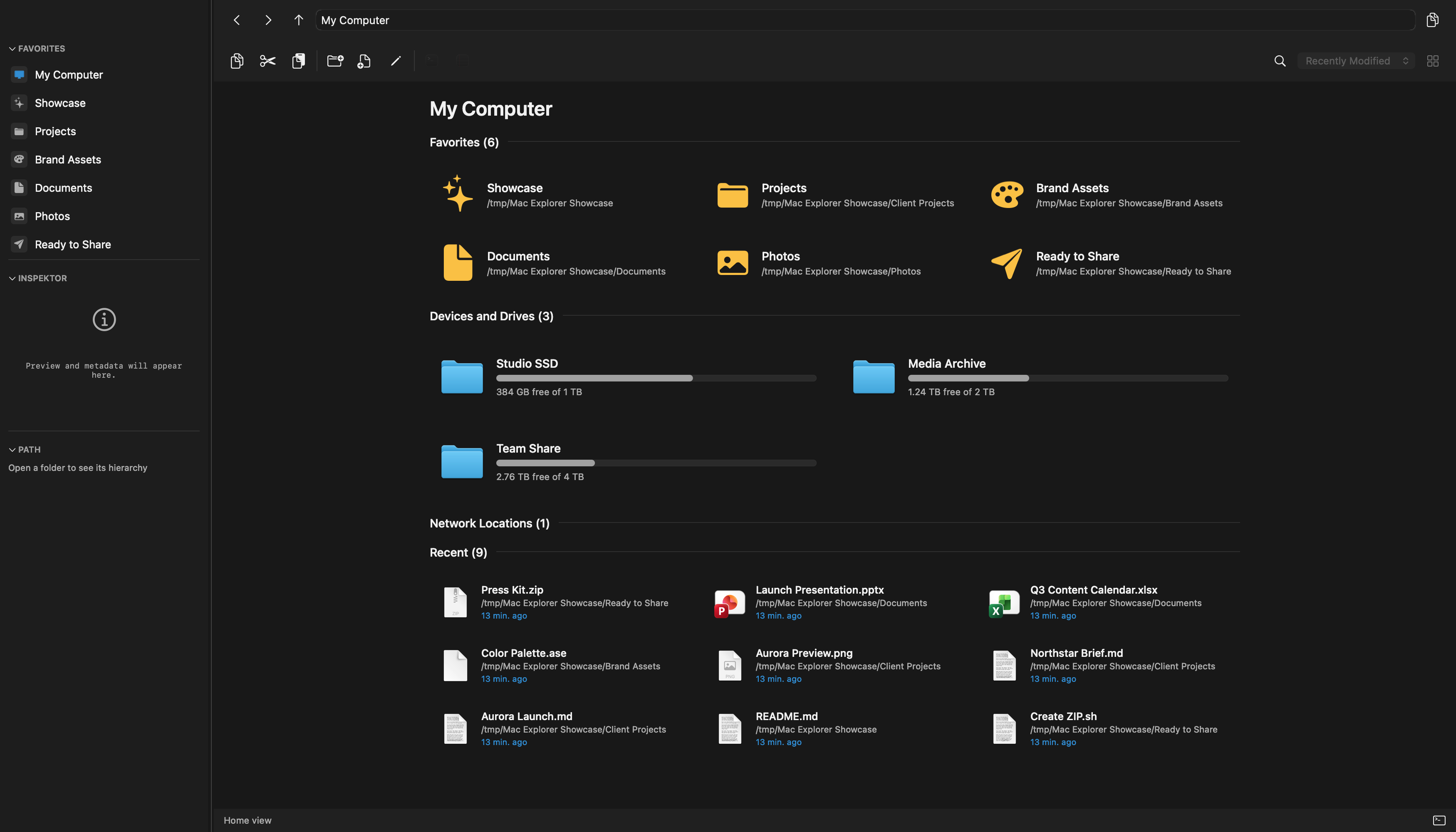
Moving from Windows to Mac should not require abandoning years of file-management
muscle memory. Mac Explorer was built around that idea. It brings the direct,
single-pane workflow of Windows File Explorer to macOS, including Enter to
open, Backspace to go back, Delete to move items to Trash, F2 to rename,
an editable address bar, and a "My Computer" view. It then goes further with an
embedded terminal, Git, live RegExp filtering, technical metadata, and custom
actions.
That makes Mac Explorer our first recommendation for Windows users, but it is not the only good Finder alternative. Some people still want a classic dual-pane commander, specialized transfer queues, or a way to keep Finder while changing a few frustrating behaviors. The best choice depends on which part of the Windows experience you are trying to preserve.
What should a Windows user look for?
"Works like Windows" can mean several different things:
- Windows File Explorer workflow: one main folder view, a familiar address bar, direct keyboard shortcuts, history, and a "This PC" equivalent;
- Total Commander workflow: two panes, keyboard-first copying, tabs, archives, and remote connections;
- Windows-style fixes for Finder: keep Finder and Apple integrations, but
change shortcuts such as Return,
F2,Delete, and cut-and-paste; - developer workflow: keep a terminal, Git state, filters, and metadata close to the current directory.
Mac Explorer is the closest match for the first and fourth categories. QSpace can imitate many Windows bindings inside a highly configurable Finder-like interface. Commander One and Marta belong to the dual-pane tradition, while Supercharge modifies Finder instead of replacing it.
1. Mac Explorer — best overall for Windows File Explorer users
Mac Explorer is designed around the interaction model most Windows users
already know. Its shortcuts are not a theme or optional preset; they are the
foundation of the app. The address bar combines clickable breadcrumbs with
direct path editing through Cmd+L, mouse Back and Forward buttons navigate
history, and "My Computer" presents favorites, mounted volumes, storage use,
and recent files.
The app is also more than a visual imitation. It adds:
- an embedded terminal synchronized with the current folder;
- contextual Git status, branch information, and branch switching;
- live filename filtering with an explicit RegExp mode;
- MIME type,
chmod, owner, and group columns; - a rich Inspector for images, PDFs, and documents;
- local apps and scripts in the toolbar or context menu;
- native settings plus optional, comment-preserving JSONC configuration;
- undo and redo history with safety warnings.
Mac Explorer remains deliberately single-pane and has no tabs. That focused layout is the main interface trade-off for people who want the ordinary Windows File Explorer model.
For work beyond local disks, it also connects directly to more than 140 sources, including FTP, SFTP, WebDAV, S3-compatible storage, Google Drive, Dropbox, OneDrive, and network shares. All source support is included at $9.99 for two devices after a 30-day trial; some providers use a free, one-click add-on. Finder remains available for AirDrop, tags, and Apple-device management.
Best for: people who miss ordinary Windows File Explorer rather than Total Commander, especially developers and keyboard-and-mouse users.
2. QSpace — best for Windows shortcuts with many panes and tabs
QSpace starts with a Finder-like interface and adds up to 12 pane layouts, tabs, an interactive address bar, view profiles, extensive customization, and an optional Windows Key Bindings profile. It is a strong choice when a single pane feels too restrictive but you still want a visual interface familiar to Mac users.
Its address bar supports autocomplete, expandable path segments, and drag-and-drop onto a destination. QSpace also offers Spotlight search, tags, file templates, hashes, and Quick Launch. Paid extensions add archive browsing, server and cloud connections, Stash Shelf, and advanced batch rename with optional RegExp.
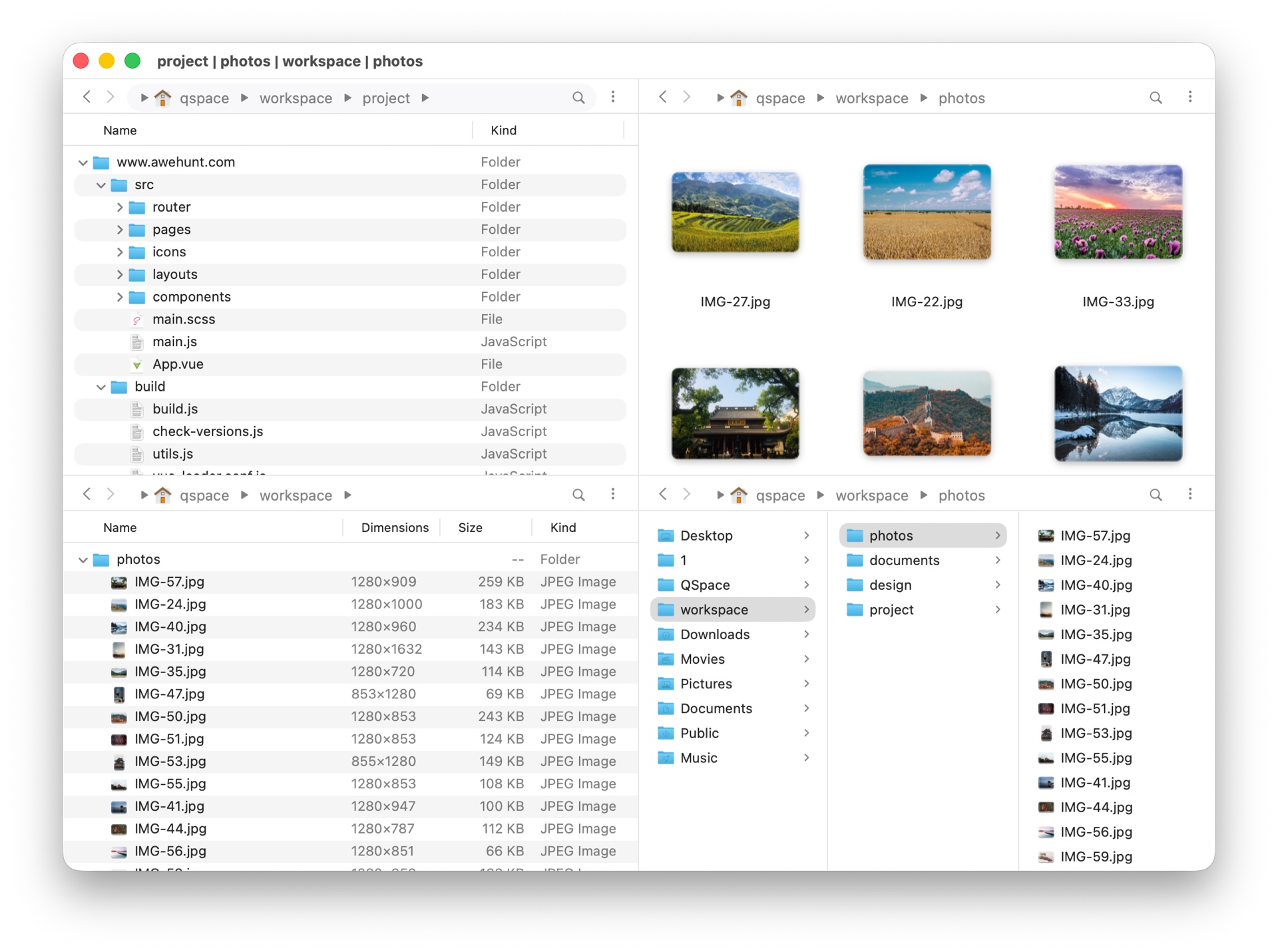
Unlike Mac Explorer, QSpace opens an external terminal rather than embedding one and does not present Git as a contextual part of the folder view. Its privacy policy also describes account, IP, and device information, while the Mac Explorer core requires no account and contains no telemetry.
Best for: users who want Windows key bindings but also depend on tabs, multiple visible folders, and deep interface customization.
3. Commander One — best for Total Commander users
Commander One is a dual-pane manager with a free core edition. It includes unlimited tabs, configurable shortcuts, an operation queue, favorites, hidden files, ZIP support, and viewers for text, media, HTML, binary, and hex data. Its search supports Spotlight, file contents, RegExp, and archives.
The paid PRO Pack adds FTP, SFTP, WebDAV, S3, cloud services, iOS, Android and MTP devices, additional archive formats, and a terminal emulator. This is much closer to Total Commander than to ordinary Windows File Explorer.
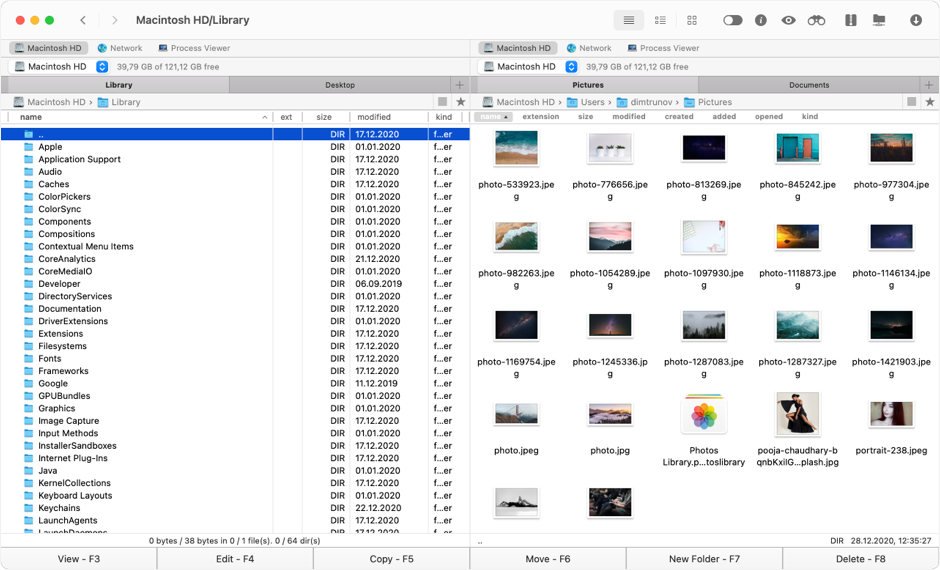
Mac Explorer is the better fit when one pane, an embedded terminal, visible Git context, and the standard Explorer interaction model matter more than servers and archives.
Best for: Total Commander users and people who need remote services, devices, archives, and broad search in a dual-pane interface.
4. ForkLift — best for servers, cloud storage, and transfers
ForkLift combines a polished dual-pane file manager with a professional transfer client. It supports SFTP, FTP, WebDAV, Amazon S3, Backblaze B2, Google Drive, OneDrive, Dropbox, SMB, AFP, NFS, and more. Synchronization, transfer queues, remote editing, workspaces, archive browsing, and tabs make it particularly capable across local and remote locations.
Its Git integration goes beyond status: ForkLift supports add, commit, push, and pull. It opens the current path in many external terminals, while Mac Explorer keeps a terminal embedded in the file-manager window.
Best for: administrators, web professionals, and anyone who regularly moves files between a Mac, servers, and cloud storage.
5. Path Finder — best for a modular power-user workspace
Path Finder is one of the longest-established Finder alternatives. It offers one- or two-pane browsing, configurable modules, Drop Stack, FolderSync, batch operations, archive tools, Size Browser, tabs, and iPhone browsing over USB. Modules can place a terminal, preview, file information, and even a hex editor around the file view.
That breadth is useful when you want one large file-management workspace. Mac Explorer takes the opposite approach: one predictable layout with its key developer tools already integrated and no need to design a dashboard.
Best for: power users who want dual-pane work, folder synchronization, and a large collection of configurable modules.
6. Marta — best for a lightweight, keyboard-first commander
Marta is a native Swift dual-pane file manager with a strong keyboard workflow, operation queue, rich archive support, disk analysis, tabs, an embedded terminal, RegExp Quick Search, text-based configuration, and Lua plugins. Its site explicitly states that it does not collect or sell user data.
Marta remains beta software and expects users to be comfortable with a DSL or Lua for deeper customization. Mac Explorer offers a lower configuration barrier through native settings while retaining optional JSONC for people who want it.
Best for: keyboard-focused dual-pane users who value native performance, archives, and programmable extensions.
7. Supercharge — best if you want to keep Finder
Supercharge is not a separate file manager. It changes Finder and other parts
of macOS through optional enhancements. For Windows users, its most relevant
features include Return to open, F2 to rename, Delete to move to Trash,
Windows-style cut and paste, new files from templates, path commands, and a
richer Finder context menu.
This preserves Finder's tabs, tags, iCloud, and Apple integrations. It does not provide Mac Explorer's own folder interface, embedded terminal, Git section, or live RegExp view.
Best for: people who fundamentally like Finder and only want Windows-style shortcuts plus broader macOS refinements.
Quick comparison
| App | Closest Windows model | Windows-style keys | Embedded terminal | Git in file view | RegExp | Remote services | Starting price |
|---|---|---|---|---|---|---|---|
| Mac Explorer | Windows File Explorer | Built in | Yes | Yes | Live folder filter | 140+ sources included | $9.99 / 2 devices |
| QSpace | Configurable Finder / multi-pane | Optional profile | No, opens external apps | No comparable built-in section | Selected features and extensions | Paid extension | From $12.99 promotional |
| Commander One | Total Commander | Configurable | PRO | No comparable built-in section | Advanced search | PRO | Free; PRO $29.99 |
| ForkLift | Dual-pane transfer manager | Configurable | No, opens external apps | Status plus add, commit, push, pull | Search and filters | Built in | $19.95 |
| Path Finder | Modular dual-pane manager | Configurable | Module | Not a central product feature | Advanced filtering and selection | Primarily mounted locations | $32.95 / year |
| Marta | Keyboard-first commander | Customizable | Yes | Through actions or plugins | Quick Search | Mounted locations | Free beta |
| Supercharge | Enhanced Finder | Adds selected Windows behavior | Opens terminal | Selected Git actions | No equivalent live view | Finder integrations | $20 |
Our recommendation
If what you miss is Windows File Explorer itself, start with Mac Explorer. It is the only option in this list whose core product identity is a native, single-pane Windows File Explorer workflow with an embedded terminal, Git, and RegExp filtering.
Choose QSpace when panes and tabs matter more than a fixed workflow. Choose Commander One or Marta when "Windows file manager" means Total Commander to you. Choose ForkLift for specialized synchronization and transfer queues, Path Finder for a modular workspace, or Supercharge when you want to keep Finder. For straightforward cloud, storage, and server access, Mac Explorer already includes more than 140 sources.
Finder does not have to disappear. Mac Explorer includes an "Open in Mac Explorer" Quick Action, so Finder can continue handling AirDrop, iCloud, tags, and Apple devices while Mac Explorer becomes the place where you work with folders every day.