Mac Explorer vs Commander One — Windows File Explorer workflow or a classic commander?
Commander One is a dual-pane manager with a free core and a PRO Pack for servers, archives, and devices. Mac Explorer brings a Windows File Explorer workflow, terminal, Git, and custom actions, with 140+ sources included in the standard price.
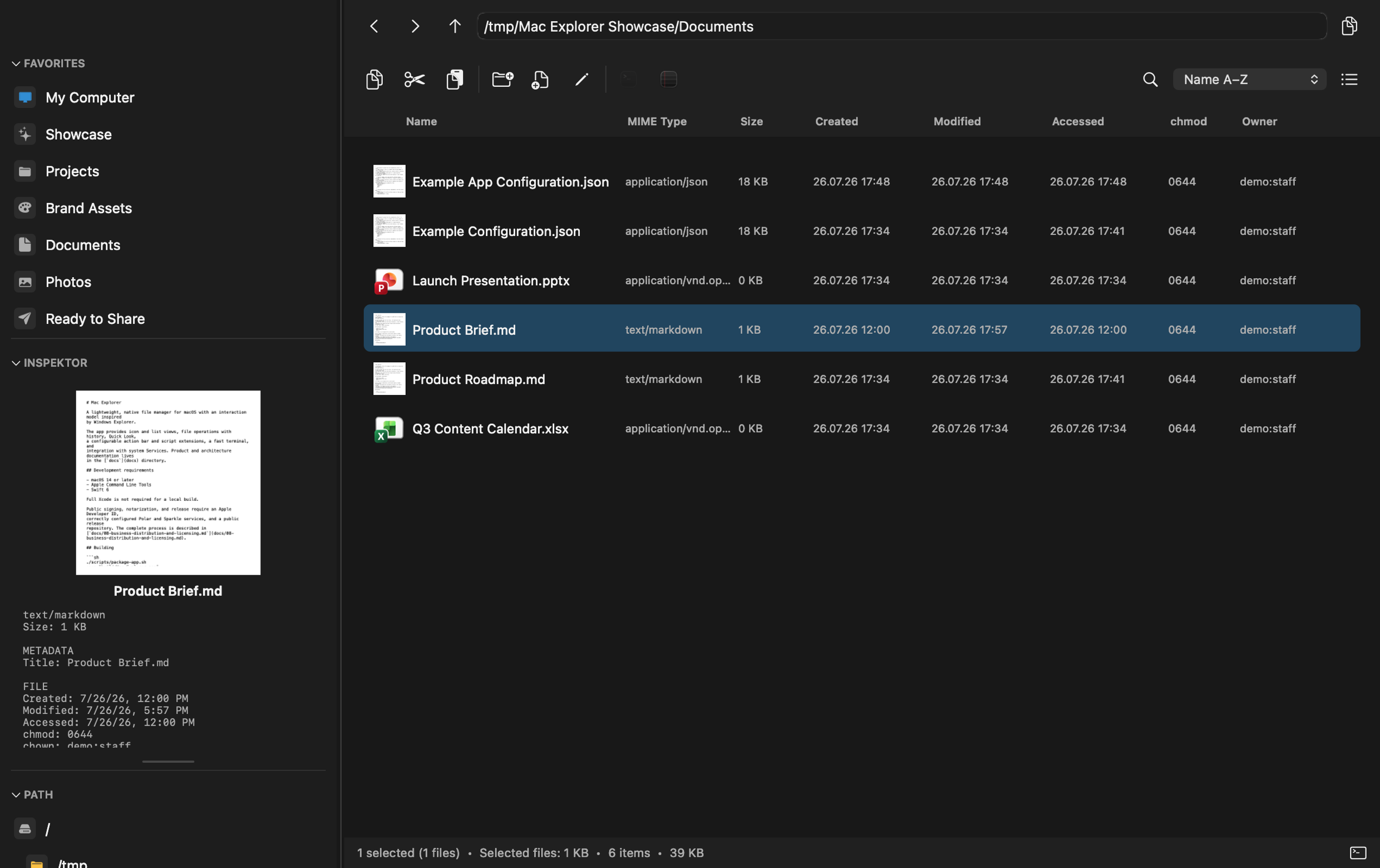
Mac Explorer brings the directness of Windows File Explorer to macOS rather
than adopting the layout of a classic commander. One pane, Enter,
Backspace, Delete, F2, an editable path, and navigation through mouse
buttons create a familiar foundation. On top of it, Mac Explorer adds an
embedded terminal, Git, RegExp, technical metadata, and custom automation.
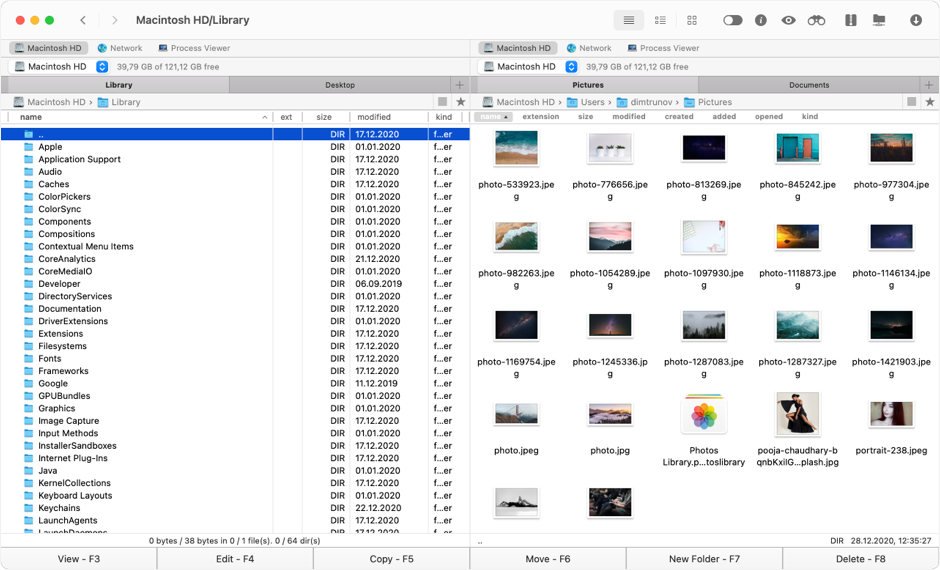
Commander One is a modern descendant of classic dual-pane file managers. It offers a free core and a paid PRO Pack with a terminal, servers, cloud services, and mobile devices. It is an attractive option for people who prefer a Total Commander-style layout.
Commander One's strengths
The free edition already includes two panes, unlimited tabs, three view modes, customizable shortcuts, an operation queue, history and favorites, hidden files, local and network drives, ZIP support, and viewers for text, media, HTML, binary, and hex data.
Search is another notable feature. Commander One combines Spotlight, content search, and advanced RegExp search, including inside archives. This is broader than Mac Explorer's intentionally immediate filter for the current folder.
The PRO Pack adds FTP and SFTP, WebDAV, Amazon S3, Dropbox, Google Drive, OneDrive, other cloud services, iOS, Android and MTP devices, a process viewer, more archive formats, and a terminal emulator. One pane can therefore show a local drive while the other shows a server or phone.
Mac Explorer has different priorities
Mac Explorer does not include dual-pane browsing, tabs, or a full archive engine. It also does not compete with global content search: its RegExp mode is a fast filename filter for the folder already on screen. Those are deliberate scope choices that keep the everyday workflow focused on one current location.
In return, it provides a consistent Windows File Explorer model: Enter
opens, Backspace goes back, Delete moves to Trash, F2 renames, Cmd+L
edits the address, and mouse buttons navigate history. That is the difference
between "a commander for Mac" and "Windows File Explorer for macOS."
Mac Explorer also brings several features into the core workflow:
- contextual Git status, branch information, and branch switching;
- an embedded terminal synchronized with the folder shown in the window;
- detailed MIME,
chmod, owner, and group columns; - an Inspector with rich image, PDF, and document metadata;
- scripts and apps pinned to the toolbar or context menu, with type and RegExp conditions;
- comment-preserving JSONC configuration alongside native settings;
- undo and redo history with safety warnings.
When work extends beyond local disks, Mac Explorer can also connect to more than 140 cloud drives, object-storage services, remote servers, and protocols, including FTP, SFTP, WebDAV, Amazon S3, Dropbox, Google Drive, and OneDrive. Those connections are part of the $9.99 license rather than a separate pack.
Price, privacy, and performance
Commander One's free edition is a major advantage. The $29.99 PRO Pack is a one-time purchase for one Mac, and its features can be tested for 15 days. Mac Explorer offers a longer 30-day trial and costs $9.99 for two devices. Its support for more than 140 cloud, storage, and server sources is included at that price; Commander One reserves server and cloud connections for the paid PRO Pack. Commander One still has the advantage for direct mobile-device access.
Both apps are written natively in Swift. Mac Explorer also publishes the
conditions of its measurements: 284.21 ms from main() to the first window on
an M4 Max and under 100 MB of baseline RAM in the documented environment. A
shared benchmark would be required to declare either app universally faster.
Mac Explorer explicitly has no core telemetry, account, or transmission of file names and contents. Commander One does not make an equally specific claim on its main features page; that is not evidence that it uploads file data, and the developer's current privacy policy remains the appropriate source.
Which one is for you?
Commander One is stronger for Total Commander users, archive-heavy workflows, phones, or anyone who needs global content search. Mac Explorer better fits someone coming from ordinary Windows File Explorer who wants one pane, project-aware Git and terminal tools, simple automation, and access to cloud and server sources without buying a separate upgrade when that is part of the workflow.
Comparison table
| Feature | Mac Explorer | Commander One |
|---|---|---|
| Workflow | One pane, inspired by Windows File Explorer | Two panes, inspired by classic commanders |
| Price | $9.99 / 2 devices | Free core; PRO $29.99 / 1 Mac |
| Trial | 30 days | 15 days of PRO features |
| Windows File Explorer shortcuts | Built in and central to interaction | Configurable shortcuts in a dual-pane model |
| RegExp | Fast filename filter for the current folder | Advanced search across content and archives |
| Terminal | Embedded and follows the current folder | Terminal emulator in PRO |
| Git | Built-in repository context | No comparable Git section in the main feature set |
| Technical metadata | MIME type, chmod, owner, group, and Inspector | Built-in viewer, including binary and hex |
| Custom actions | Scripts and apps in toolbar or context menu, GUI and JSONC, type and RegExp filters | Configurable shortcuts and a broad built-in catalog |
| Privacy | Explicitly no core telemetry or file-data transmission | No equally specific claim on the features page; see the current privacy policy |
| Dual-pane and tabs | One focused pane; no tabs | Two panes and unlimited tabs |
| Cloud, storage, and server sources | 140+ sources included in the standard price | Extensive server and cloud support in PRO |
| Devices and archives | Local actions and system tools | iOS, Android, MTP, and broad archive support, partly in PRO |
| Best for | Windows File Explorer workflow, Git, scripts, and included remote access | Dual-pane work, archives, devices, and extensive search |